
Date. Restrict the search area as much as possible. Whenever the Invoice Date field name occurs on an image, it is located very close to the name of the Invoice Number field.
Create the kwInvoiceDate element
1
Create the Static Text element
In the InvoiceHeader element, create a Static Text element and name it kwInvoiceDate.
2
Enter the search text
Click the Static Text tab. In the Search text field, enter
Date.3
Set the error tolerance
Leave 30 as the value for Max error percentage. For the four-letter search word, this means no more than one error.
4
Set the location relations
Click the Relations tab. The keywords of the name can occur only below the Invoice Number field name, but no more than 150 dots below its bottom boundary, so set these relations: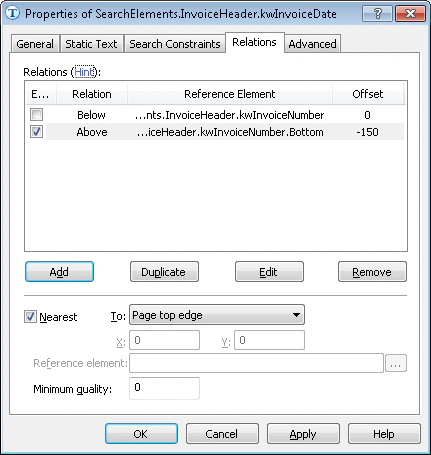
- Below the kwInvoiceNumber element, Offset = 0
- Above the bottom of the kwInvoiceNumber element, Offset = -150, Reference boundary = Bottom
5
Add the search-area constraint
Click the Advanced tab. Since the Invoice Date field is in the left half of the image, set this additional search constraint in the Advanced pre-search relations field: look for the object in the left half of the image. In the FlexiLayout language:
6
Verify the match
Match the FlexiLayout with the test images and confirm that FlexiLayout Studio detects the element on all the images where applicable.