
- Header – The Reference and Designation column names use keywords; the Quantity, Unit Price, and Total column names use the auxiliary elements you described.
- Footer – The previously described keyword element detects it.
- Search area – The Sales column name restricts the search area on the right.
Create the InvoiceTable element
1
Create the Table element
Create an element of type Table and name it InvoiceTable.
2
Select the table block
Click the Columns tab, click Select, and specify the previously described InvoiceTable block as the block this element detects. For more information, see Step 3.
3
Configure the Reference and Designation columns
Select the Reference column and click Properties…. The keyword Reference finds this column name, so leave the default values. Do the same for the Designation column.
4
Configure the Quantity column
Select the Quantity column and click Properties…. To find this column name, use the previously detected  , and select the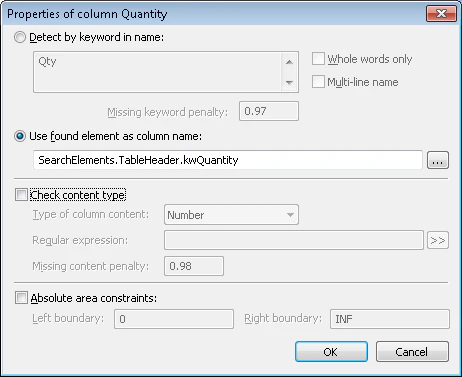
TableHeader.kwQuantity element: select Use found element as column name, click , and select the TableHeader.kwQuantity element.5
Configure the UnitPrice column
Select the UnitPrice column and click Properties…. Use the previously detected , and select the 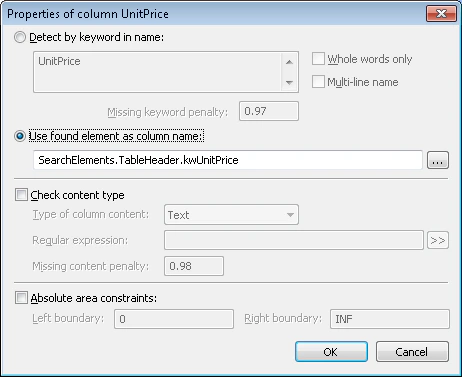
TableHeader.kwUnitPrice element: select Use found element as column name, click , and select the TableHeader.kwUnitPrice element.6
Configure the Total column
Select the Total column and click Properties…. Use the previously detected , and select the
TableHeader.kwTotal element: select Use found element as column name, click , and select the TableHeader.kwTotal element.7
Add a column-order rule
Click the Order tab. Other columns (for example, Unit) can appear between the sought columns, but the sought columns always appear in this order: Reference, Designation, Quantity, Unit Price, Total. Select Rules for column order, click Add…, and specify this order: 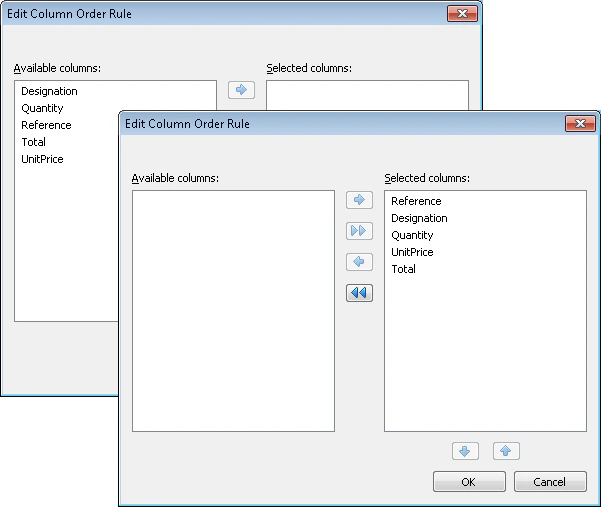
Reference << Designation << Quantity << Unit Price << Total.8
Order the columns in the rule
In the Edit Column Order Rule dialog box, move the columns into the Selected columns list in the order Reference, Designation, Quantity, UnitPrice, Total.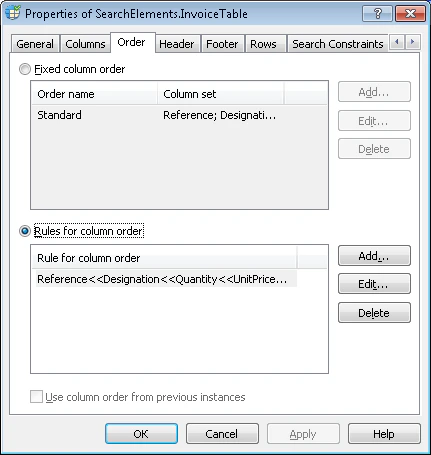
9
Configure the header
Click the Header tab. The header is needed, but it needs no search constraints, so leave the default values.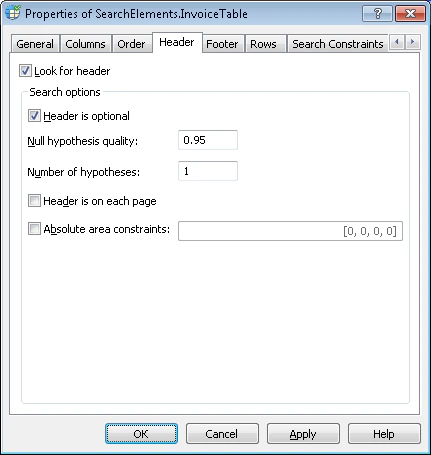
10
Configure the footer
Click the Footer tab. To detect the footer, use the previously detected , and select the 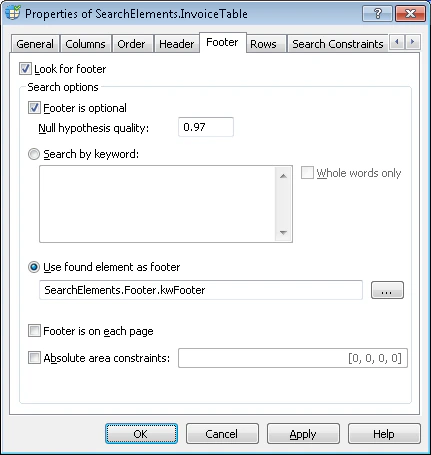
Footer.kwFooter element: select Use found element as footer, click , and select the Footer.kwFooter element.11
Set the master columns
Click the Rows tab. Some columns can have entries of several lines, so specify master columns to detect the rows. Select Use master columns to detect rows, click , and set the master columns in this priority order: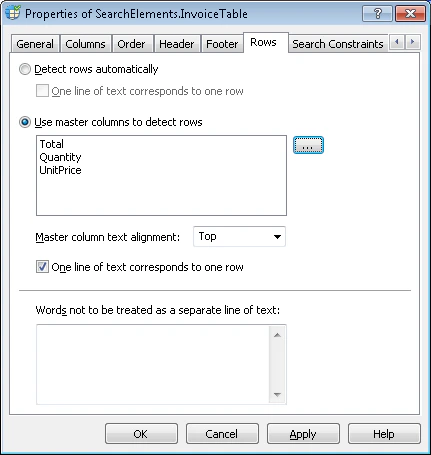
, and set the master columns in this priority order:- Total – The primary column, because it always contains data and one table row corresponds to each entry.
- Quantity – The secondary column, used if FlexiLayout Studio does not detect Total.
- Unit Price – The tertiary column, used if it detects neither Total nor Quantity.
12
Constrain the table position
Click the Relations tab. The sought columns are to the left of the Sales column name, with a small gap, so set this constraint:
- Left of the
TableHeader.kwSaleselement, Offset = -40, Reference boundary = Left
13
Match and check the Quantity column
Match the FlexiLayout with the test images. FlexiLayout Studio detects the table element on every image where it occurs. On some images, the Quantity column also includes unwanted artifacts from the previous column. To separate the useful data from the noise, specify the type of content the column can contain.
14
Set the Quantity content type
Open the Properties dialog box of the InvoiceTable element and click the Columns tab. Open the Properties dialog box for the Quantity column, select Check content type, and select Number in the Type of column content drop-down list.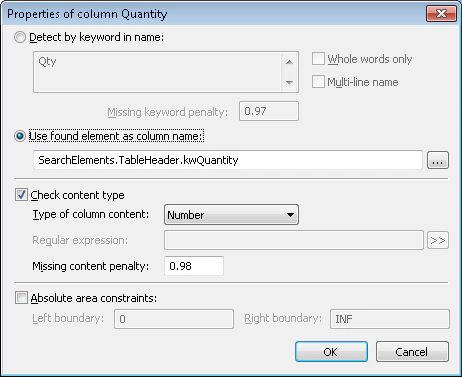
15
Verify the column
Match the FlexiLayout with the test images and confirm that the Quantity column contains no unwanted data.
16
Set the block source element
To describe the location of the InvoiceTable block, select Source element, click , and specify the InvoiceTable element as the source element.
, and specify the InvoiceTable element as the source element.