Add the utility step to the workflow
1
Open the case type
In Dev Studio, open the case type that you created earlier.
2
Add a life cycle
On the Workflow tab, click Add life cycle.
3
Create the Collect Information stage
Create a first stage with a Collect Information step. This step opens the dialog box where files can be added.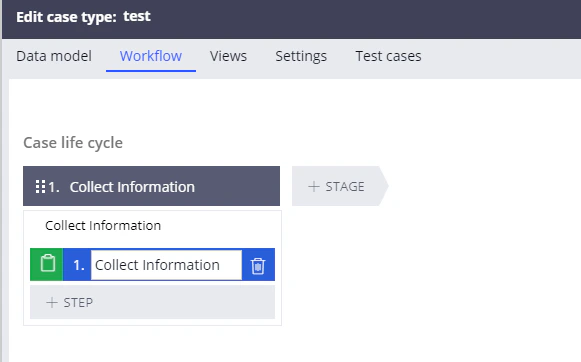
4
Create the Process stage
Create a Process stage, add any step to this stage such as Change stage, and then click Save.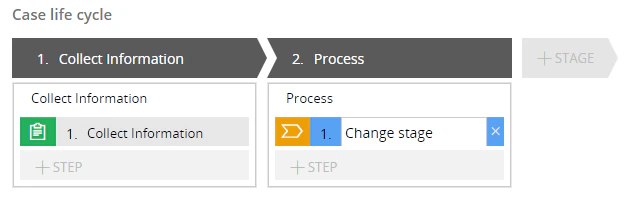
5
Open the process flow
Click Records → Process → Flow to open the list of flows, and then double-click the 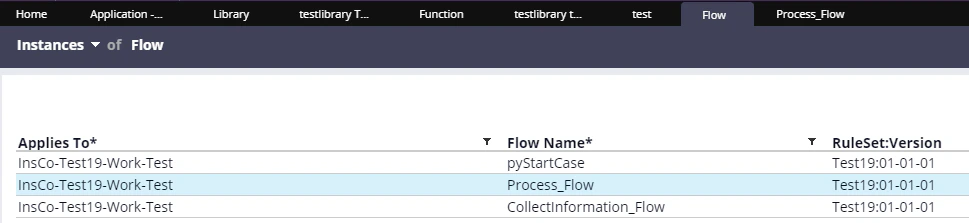
Process_Flow flow for the case type you created earlier.6
Replace the step with a Utility step
Replace the Change stage step with a Utility step.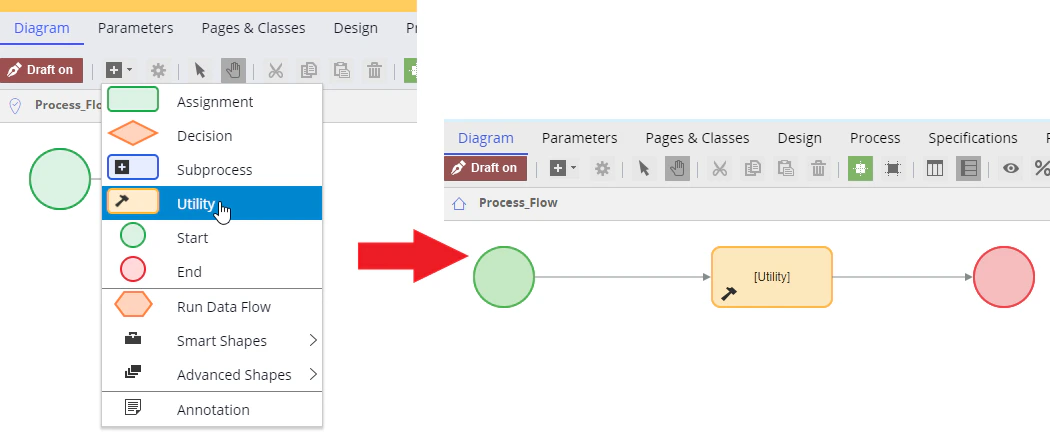
7
Create the activity from the Utility step
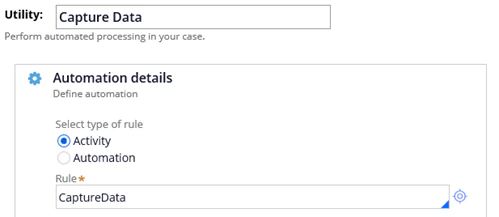
- Double-click the Utility item to open its properties.
- Change the name of the item to
Capture Data. - In the Rule field, type
CaptureDatato create a new activity with this name. - Click the icon next to the Rule field.
- In the window that opens, click Create and open.
Declare the pages and classes
On the Pages & Classes tab, create the following three objects: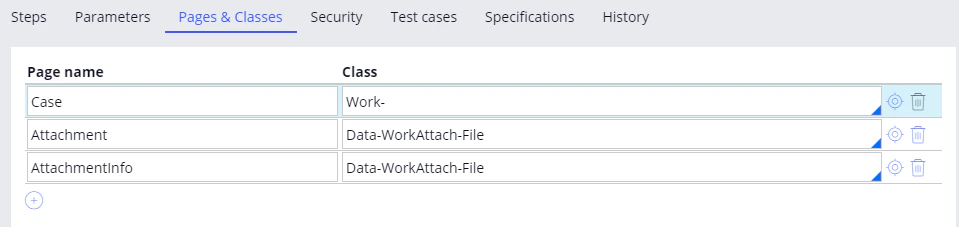
Create the parameters
On the Parameters tab, create the following three parameters: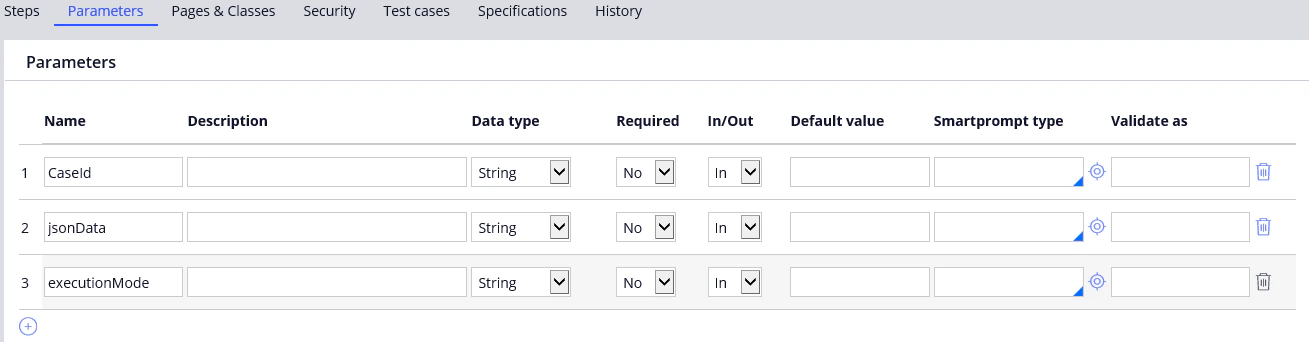
Create the local variables
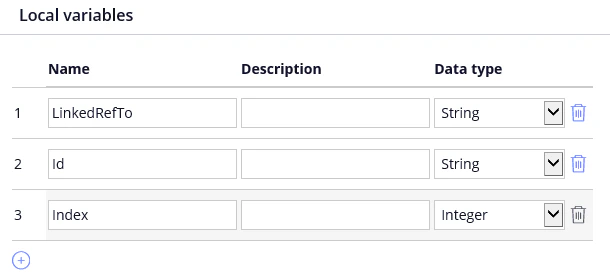
Create the following three local variables: