To install the PEGA, you need to import the connector to the server and create a Java function in Pega. To import the connector to the server:
  1. Open Dev Studio and click Configure → Application → Distribution → Import.
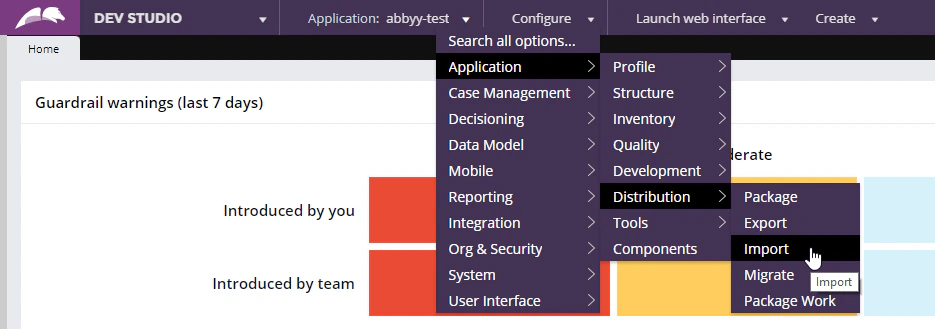
    Screenshot of Pega Dev Studio with the Configure menu open, showing the Application → Distribution → Import path being selected to import the connector.
  2. Load the FlexiCaptureConnector.jar file on to the server.
  3. Open the Pega Self-Service Portal and click Restart Server.
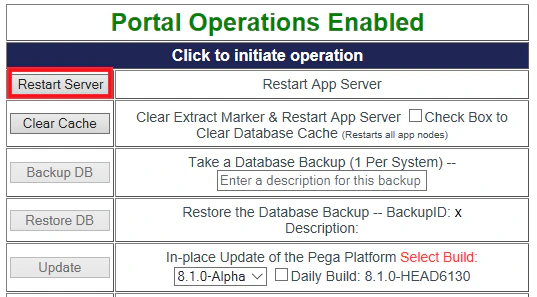
Screenshot of the Pega Self-Service Portal Operations page with the Restart Server button highlighted to restart the application server.
To create a Java function that will call methods from connector classes:
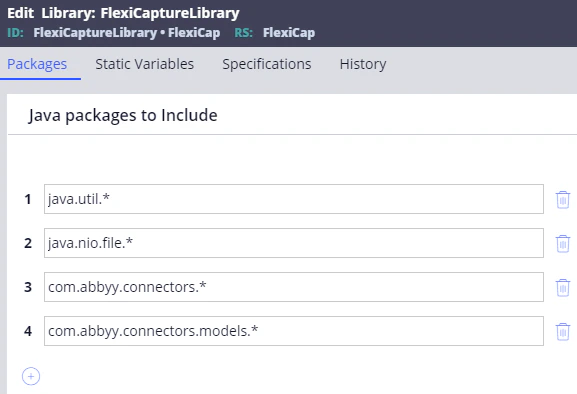
  1. Create a new library by clicking Records → Technical → Library → Create and name it, say, FlexiCaptureLibrary. Then include the following packages:
    • java.util.*
    • java.nio.file.*
    • com.abbyy.connectors.*
    • com.abbyy.connectors.models.*
    Screenshot of Pega Dev Studio editing the FlexiCaptureLibrary record on the Packages tab, listing the java.util, java.nio.file, com.abbyy.connectors, and com.abbyy.connectors.models packages to include.
  2. Click Save followed by Generate Library.
  3. Create a new function by clicking Records → Technical → Function → Create.
  4. In the Label field, provide a name for the new function (e.g. CaptureData).
  5. In the Parameters section, specify the following two input parameters:
NameJava type
FileNameString
Base64ContentString
  1. In the Library field, enter the name of the library you created in step 1 and click Create and open.
  2. In the window that opens, on the Parameters tab, specify String as the data type in Java data type field:
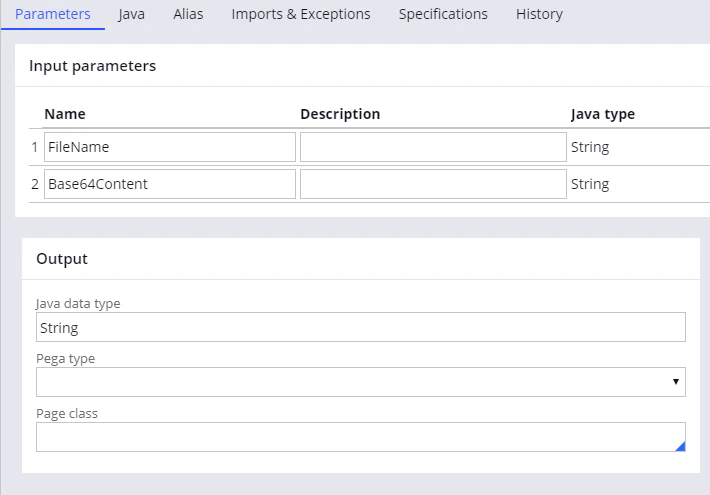
    Screenshot of Pega Dev Studio on the function Parameters tab, showing the FileName and Base64Content String input parameters and String selected as the Java data type in the Output section.
  3. Copy the code from the CodeExample.java file, which you can find in %Installation Path%\Connector for FlexiCapture as a Service\Samples\Pega Function (for your convenience, the code is reproduced below). While still in the same window, click the Java tab and paste the code you have just copied. This sample code sends files to FC and gets back the processing results in the form of JSON strings with the names of the captured fields and their values. The code fragments highlighted in yellow should be replaced with valid connection data required to connect to the FC Application Server. Then upload your project to the FC Application Server and configure it.
// Creating FlexiCapture Web Services API client. Please provide FlexiCapture Application Server address here. 
try (FlexiCaptureWebServiceClient client = new FlexiCaptureWebServiceClient("https://FlexiCaptureApplicationServer")) {
// Please uncomment the line below and provide a company name to interact with FlexiCapture Cloud or tenant.
// client.setTenant("Company");
// Please provide valid FlexiCapture user credentials.
client.setCredentials(new Credentials("Username", "Password"));
// Getting the FlexiCapture project. Please provide a project name here.
try (FlexiCaptureProject project = client.getProject("InvoiceDemoProject")) {
// Preparing a file to upload to FlexiCapture. The 'FileName' and 'Base64Content' are Pega function parameters.
List<File> files = new ArrayList<File>();
files.add(new File(FileName, Base64.getDecoder().decode(Base64Content.replace("\n", "").replace("\r", ""))));
// Preparing a job for a FlexiCapture batch processing.
BatchCreationJob job = new BatchCreationJob(files);
job.setName("Pega_" + System.currentTimeMillis());  // Setting FlexiCapture batch name.
job.setType("Default");                             // Setting FlexiCapture batch type name.
// FlexiCapture batch creation and run.
int batchId = project.create(job);
// Waiting for the batch to be processed and getting the processing results.
Result result = project.getResult(batchId);
// Check if the batch stage is Processed.
if (result.getStage() == com.abbyy.connectors.models.Stage.Processed) {
// Returning captured fields as a JSON string.
return result.getFields();
} else {
// Throwing an exception other stages.
// Instead of the throwing, processing of these stages can be configured here.
throw new FlexiCaptureConnectorException(String.format("Unsupported FlexiCapture stage type '%s'.", result.getStage()));
}
}
} catch (Exception ex) {
// Chaining error messages.
Throwable cause = ex.getCause();
String message = ex.getMessage();
while (cause != null) {
message += " " + cause.getMessage();
cause = cause.getCause();
}
// Throw chained message.
throw new FlexiCaptureConnectorException(message);
}
  1. Click the Imports & Exceptions tab and type Exception in the Exceptions thrown section.
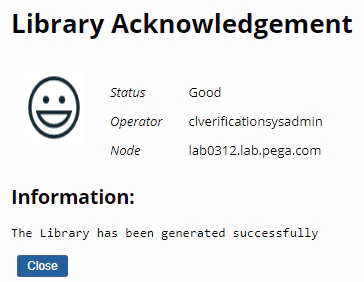
  2. Go back to the Java tab, select the Function ready to be compiled? option, save your changes, and click Generate function. If the function is generated successfully, you will see this message:
Screenshot of a Pega Library Acknowledgement dialog with a Good status and the message that the Library has been generated successfully.