
Prerequisites
Install the ABBYY FlexiCapture 12 Project Setup Station, which is required with both ABBYY FlexiCapture Distributed Edition and ABBYY FlexiCapture Cloud.Open or create a project
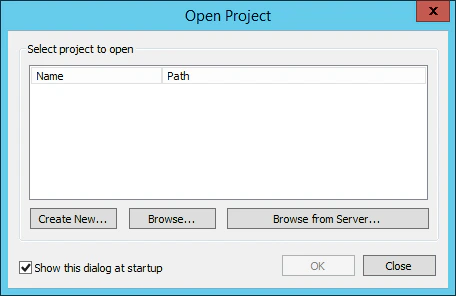
If you already have a project that you want to set up data export for, open it. Otherwise, create a project. Launch the Project Setup Station and, in the Open Project dialog box, use one of the following ways:- Click Create New to create a new project.
- Click Browse to open an existing project stored on your local drive.
- Click Browse from Server to open a project that you uploaded to the ABBYY FlexiCapture Application Server earlier.
Upload the project to the Application Server
1
Open the upload dialog box
Click File → Upload Project to Server.
2
Specify the server
In the Upload Project to Application Server dialog box, specify the address of the server, the protocol to be used, and your credentials.
3
Specify the Cloud instance
If you are using ABBYY FlexiCapture Cloud, complete the URL field with the instance that your company is registered in:
https://europe.flexicapture.comhttps://australia.flexicapture.comhttps://usa.flexicapture.com
4
Specify the tenant and credentials
In the Tenant name field, specify the name of your company. Select the Use server authentication option and enter your credentials.
5
Test the connection
Click Test Connection to check that you have entered the correct data.
6
Upload the project
Click OK to upload the project to the Application Server.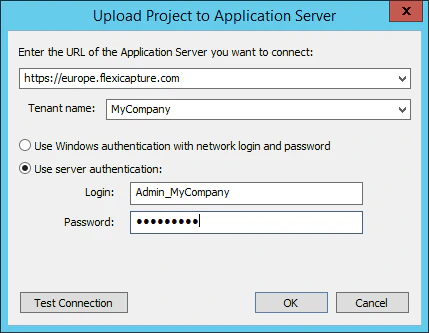
7
Open the uploaded project
When you see the 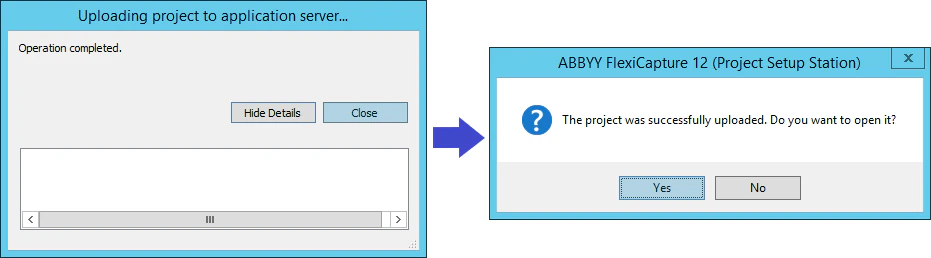
Operation completed message, click Close. In the next dialog box, click Yes to open the uploaded project from the server.