
ABBYY FlexiCapture Distributed Edition and ABBYY FlexiCapture Cloud both require the ABBYY FlexiCapture 12 Project Setup Station.
Open or create the project
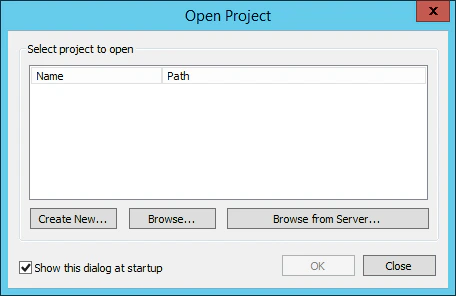
Open the project for which you need to set up XML data export. If you do not have one yet, create it. Launch the Project Setup Station and, in the Open Project dialog box, click one of the following buttons:- Create New – Creates a new project.
- Browse – Opens an existing project stored on your local drive.
- Browse from Server – Opens a project that you uploaded to the ABBYY FlexiCapture Application Server earlier.
Configure the project as a service with verification
1
Open the project properties
In the Project Setup Station, click Project → Project Properties and then click the Workflow tab.
2
Switch to the advanced schema
From the Schema drop-down list, select Advanced.
3
Open the verification stage
Select the Verification option and click Edit.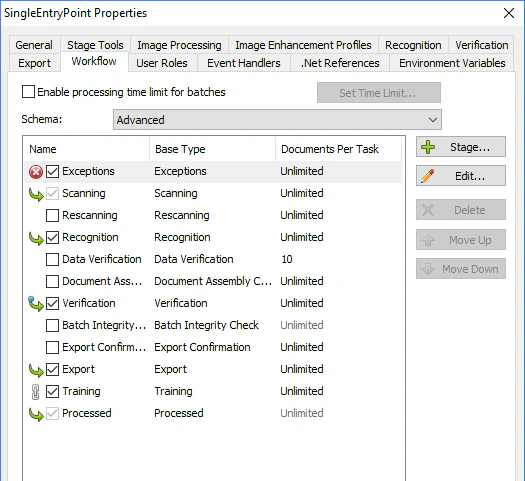
4
Enable the web stations
In the dialog box that opens, select the Enable web stations option on the General tab, and then click OK.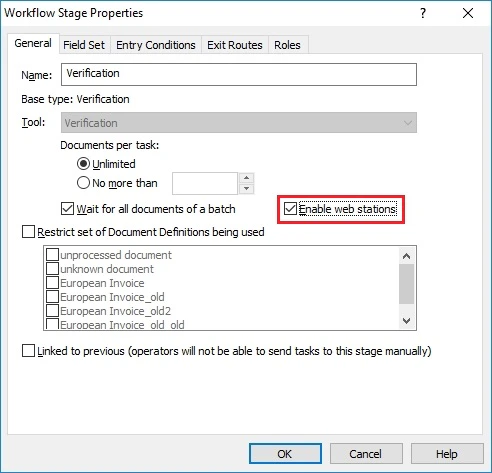
5
Clear the export root path
Make sure that the Export root path field on the General tab is empty, and then click OK.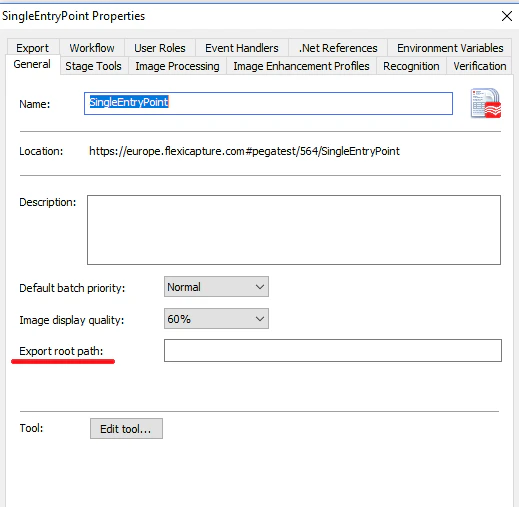
Create an export profile for each Document Definition
1
Open the Document Definition
In the Project Setup Station, click Project → Document Definitions to open the list of Document Definitions available for the project. Select the Document Definition you want to specify new export settings for, and then click Edit.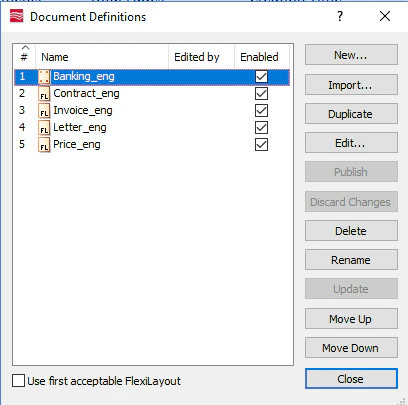
2
Start the export profile wizard
Click Document Definition → Export Settings, and then click Add.
3
Select the destination type
On the Select the Type of Destination step: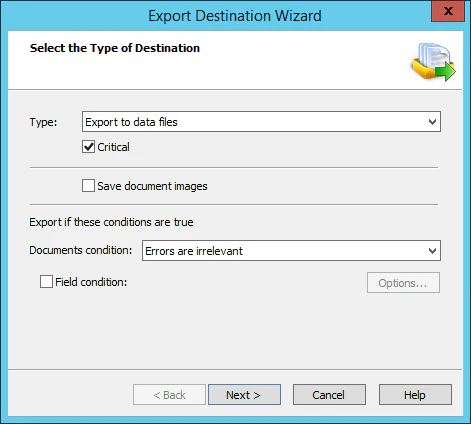
- Select Export to data files from the Type drop-down list.
- Select the Critical option.
- Select Errors are irrelevant in the Document condition field.
- Click Next.
4
Set the export path and file name
On the Export Data to Files step, make sure the Export path field is empty, specify a file name template, and then click Next.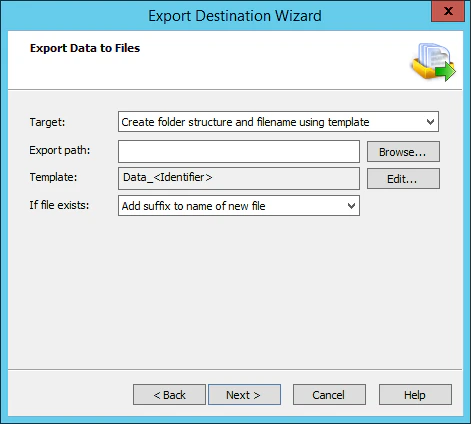
5
Select the file format
On the Data File Format step, select XML Document in the File type field, and then click Next.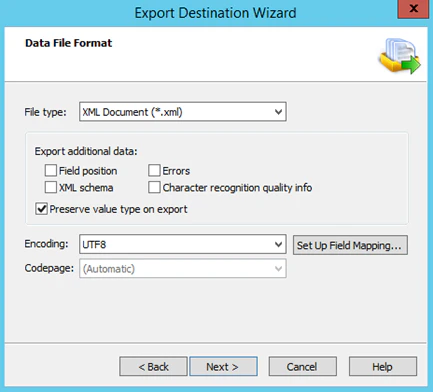
6
Name the export profile
Provide a name for your new export profile and click Finish.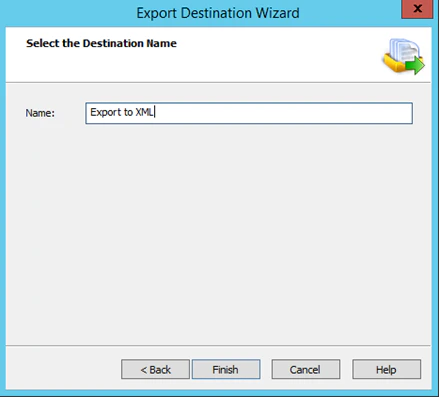
7
Enable the export profile
In the Export Settings dialog box, select the box next to the new export profile in the Enabled column. Click Apply, and then click OK.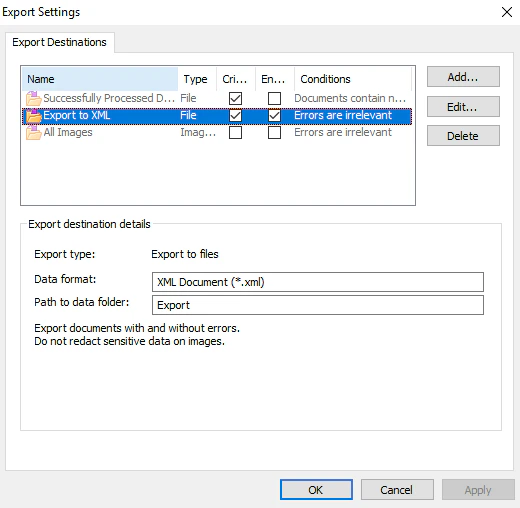
8
Publish the Document Definition
Save and publish your Document Definition.