In the XML configuration file or in the script (depending on how you have chosen to configure your export settings), you must specify the options that will be used for export. These include connection parameters to be used to connect to UiPath Orchestrator, output image options, method of naming export files, and field mapping.
  1. UiPath Orchestrator connection settings.
1.1. In the Server option, specify the address of the server where Orchestrator is located.
  • If you are using UiPath Enterprise Orchestrator, specify the Orchestrator web application’s address as the Server option like so:
connectorSettings.DmsConnectionSettings.Server = "https://orchestrator.mydomain.com";
  • If you are using UiPath Cloud Platform Orchestrator, specify the following server address:
connectorSettings.DmsConnectionSettings.Server = "https://platform.uipath.com";
1.2. In the Repository option:
  • If you are using UiPath Enterprise Orchestrator, specify the name of your Orchestrator tenant.
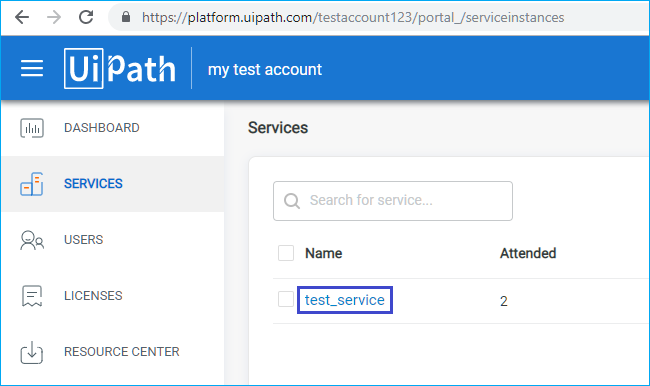
    • If you are using UiPath Cloud Platform, specify your service name in your account like so:
connectorSettings.DmsConnectionSettings.Repository = "test_service";
You can find out the name of an available service by opening your UiPath Cloud Platform account and navigating to the Services tab: 1.3. In the Username option:
  • If you are using UiPath Enterprise Orchestrator, specify the name or the email of the Orchestrator user.
    • If you are using UiPath Cloud Platform, specify the user’s email and authentication type in the additional export option.
1.4. In the Password option specify the Orchestrator user’s password.
When using UiPath Cloud Platform with old accounts from UiPath Community Orchestrator, you have to migrate it first to the new authentication method by resetting password.
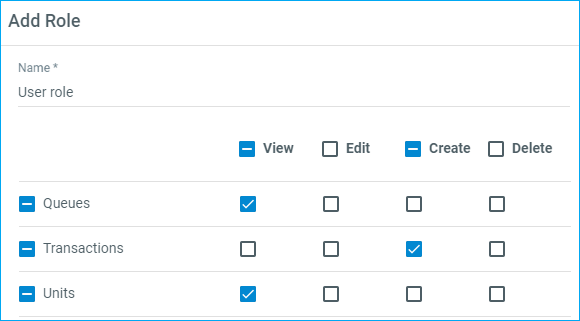
The following roles should be assigned to a user in Orchestrator: view queues, create transactions and view units.
  1. In the FileName field, specify template, which will be used to generate the names of the export files.
List of supported dynamically replaceable tags:
  • <Project> – name of ABBYY FlexiCapture project;
  • <Batch> – batch name;
  • <DocumentDefinition> – name of document definition in ABBYY FlexiCapture;
  • <Identifier> – document identifier;
  • <BatchType> – batch type name;
  • <Time> – current time in yyyy-MM-dd_HH-mm-ss format;
  • <Index:> – Index field value.
Also, you can use the <FileNameWithoutExtension> tag to use the name of the source file (if image was received from UiPath Activity, batch contains this Registration Parameter with name of source image file).
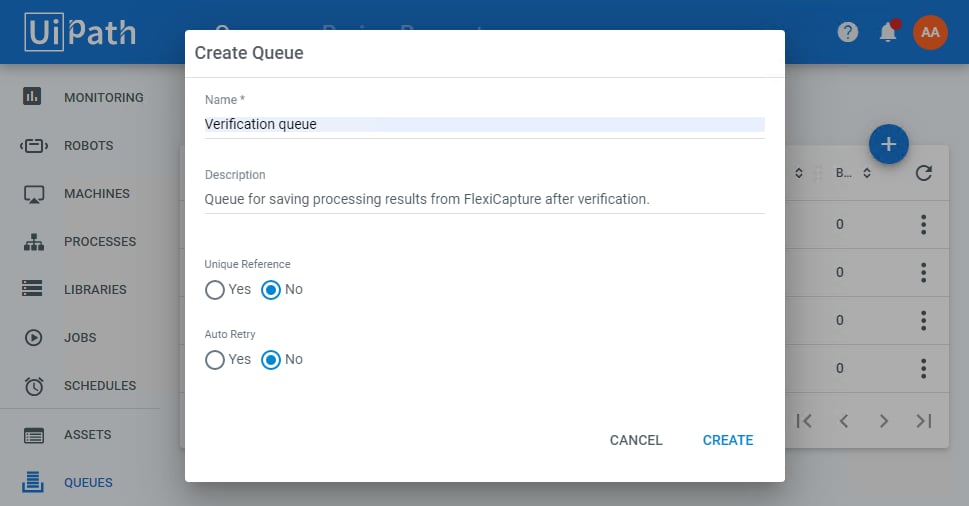
  1. In the field DmsMetadataTemplate.Name specify the Orchestrator queue name, for example:
connectorSettings.MappedFields.DmsMetadataTemplate.Name = "Verification queue"
After the export script is executed, a new transaction with data will be created in this queue. Create such a queue in Orchestrator:
  1. ExportImageSavingOptions - the options available for output images (e.g. image format options or ability to redact fields containing confidential information) are described in ABBYY FlexiCapture Help (look for the description of the IExportImageSavingOptions interface).
  2. Map the fields in order to export recognized metadata. For each Document Definition field whose value you want to export, you must specify its name in the transaction.
Only those Document Definition fields will be exported to the transaction which have been mapped. Any number of fields can be mapped.
If you configure export options using a script, the field pair must be in the following format:
{ @"Invoice Layout\InvoiceNumber", "InvoiceNumber" }
The first value is the full path to the field in the FlexiCapture Document Definition. The second value is the name of the field in the UiPath Orchestrator transaction. In the second value, you can specify the name that you want to use for the field in the transaction. Fields with the specified names will be created in the transaction at runtime. If you configure export options using XML, the field pair must be in the following format:
<FieldPair>
<AfcField>Invoice Layout\InvoiceNumber</AfcField>
<DmsField>InvoiceNumber</DmsField>
</FieldPair>
Where AfcField represents the full field name in the ABBYY FlexiCapture Document Definition, and DmsField represents the field name in the UiPath Orchestrator transaction.
  1. You can also specify additional UiPath export settings using the DmsSpecificOptions property:
6.1. AuthenticationType lets you choose the authentication type that will be used when logging in to UiPath Orchestrator. It can have only 2 values: Basic and OAuth2.
If you are setting up exporting to UiPath Cloud Platform Orchestrator, using this option is required. In this case, specify it to be OAuth2.
If you are setting up exporting to UiPath Enterprise Orchestrator, specify the value to be Basic. For UiPath Enterprise Orchestrator, using this oprion is not required. A value for this option can be set using the following code:
connectorSettings.DmsSpecificOptions = new Option[] { 
new Option(new KeyValuePair<string, object>("AuthenticationType", "OAuth2"))
};
where AuthenticationType is the option name and the second attribute is the option value. 6.2. Reference lets you specify a reference when creating a transaction. To set up this option, include the following piece of code in the export script:
connectorSettings.DmsSpecificOptions = new Option[] { 
new Option(new KeyValuePair<string, object>("Reference", Document.Batch.Id.ToString()))
};
where Reference is the option name and the second attribute is the option value. Specify Document.Batch.Id.ToString()as the value in order to use the batch identifier as a reference. 6.3. OrganizationUnitName lets you export processing results to the specified Orchestrator Organization Unit. This option is available only for UiPath Enterprise Orchestrator.
in Orchestrator, the Organization Unit feature should be enabled.
To set this option up, include the following code in the export script:
connectorSettings.DmsSpecificOptions = new Option[] { 
new Option(new KeyValuePair<string, object>("OrganizationUnitName", "ORG_UNIT_NAME"))
};
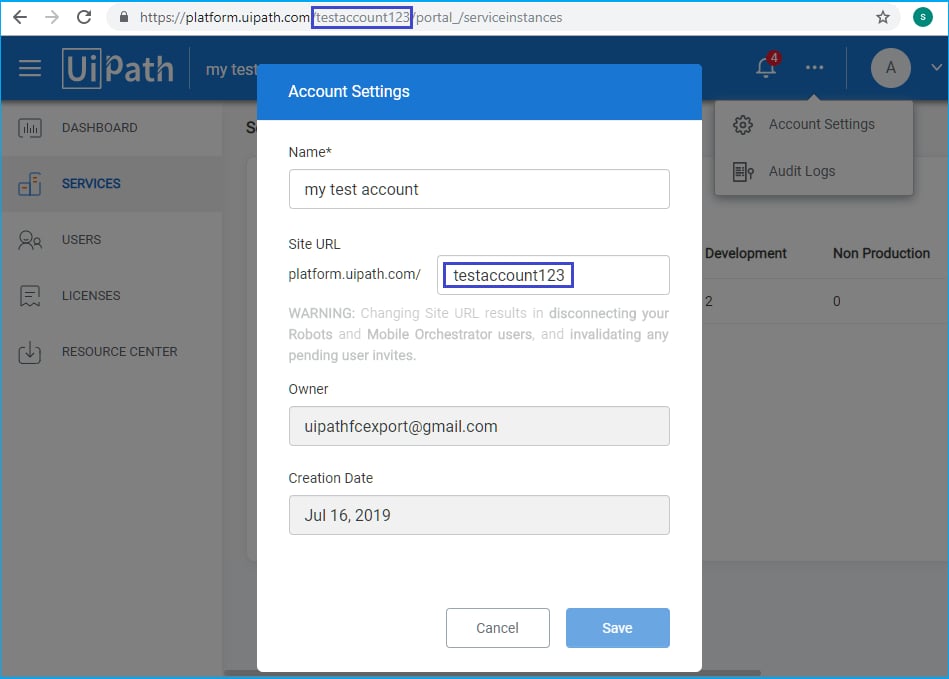
where OrganizationUnitName is the option name and the second attribute is its value. Specify the name of the Organization Unit that you want to set up as the option value. 6.4. AccountLogicalName lets you specify to which UiPath Cloud Platform account processing results will be exported. This option is used if several UiPath Cloud Platform accounts are available to the user. It is only available for UiPath Cloud Platform Orchestrator. The account logical name is used as the value of this option. The logical name can be found in the Orchestrator’s Account Settings, it is the editable part of the Orchestrator site URL. The logical name is also visible in the browser’s address bar once you have logged in to your account. The sample code below illustrates the use of this option:
connectorSettings.DmsSpecificOptions = new Option[] { 
new Option(new KeyValuePair<string, object>("AccountLogicalName", "testaccount123"))
};
where AccountLogicalName is the option name and the second attribute is the option value. If you need to use several options in a single export script, list them as elements of the Option array (separated by commas). For example:
connectorSettings.DmsSpecificOptions = new Option[] {
new Option(new KeyValuePair<string, object>("AuthenticationType", "OAuth2")),
new Option(new KeyValuePair<string, object>("AccountLogicalName", "ACCOUNT_LOGICAL_NAME")),
new Option(new KeyValuePair<string, object>("Reference", Document.Batch.Id.ToString()))
};
  1. SaveDocumentImages option indicates whether image files should be saved to a UiPath Orchestrator transaction. Set this option to true if images should be saved; set this option to false if no images should be saved.
The sample code below illustrates the use of this option:
connectorSettings.SaveDocumentImages = true;
You can find examples of setting up export options in the [Connector installation path]\Single-task package\Samples\FlexiCapture Scripts folder. Look for files named default.config.xml and UiPath - ExportScript - Configure by script (Attended service).cs.