The FlexiCapture 12 – Multitask VBO offers all the functionality required for working with FC 12. It includes two built-in actions, Initialize and Clean Up, and the following actions for working with FC:

Configure

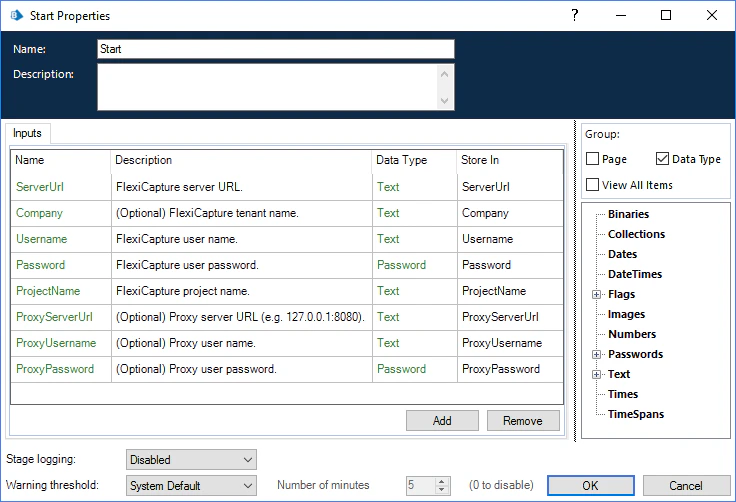
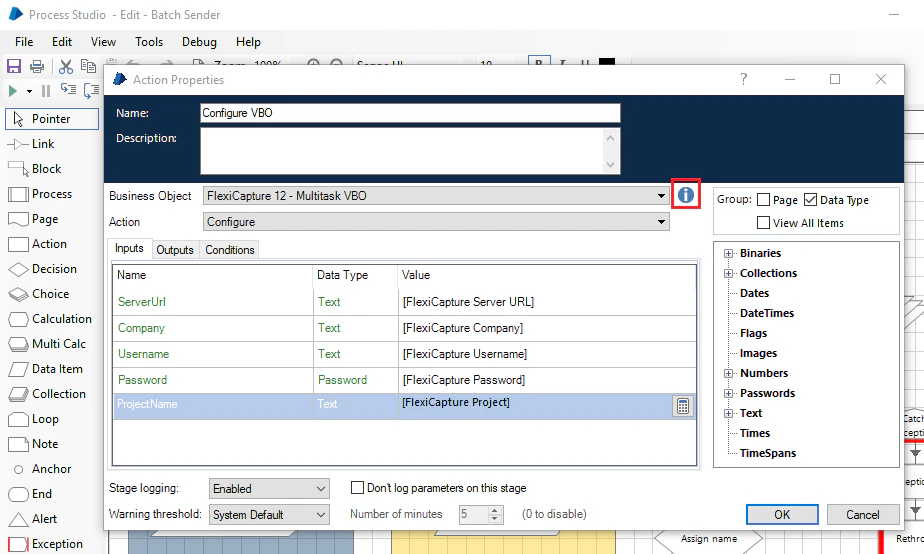
This action initializes the FlexiCapture 12 – Multitask VBO with the settings required to connect to FC 12. Always run this action prior to using any other action available in the FlexiCapture 12 – Multitask VBO. The “Configure” action accepts the following connection settings as input: FC server address, tenant name (optional parameter), user name, password, and FC project name. This action also accepts the following optional parameters that can be used to connect to FC via a proxy server: the proxy server address, the proxy server user name, and the proxy server password. These settings will be saved to the data items for subsequent use by other actions available in the FlexiCapture 12 – Multitask VBO. If you are using a proxy, depending on the authentication type required by the proxy, do the following:
  • If a transparent proxy is used, pass the proxy server address and port in the ProxyServerUrl parameter and leave the ProxyUsername and ProxyPassword parameters empty.
  • If the proxy uses NTLM authentication, pass the proxy server address and port in the ProxyServerUrl parameter and leave the ProxyUsername and ProxyPassword parameters empty. The credentials under which the “Automate.exe” process is running will be used.
  • If the proxy uses Basic authentication, pass the proxy server address and port in the ProxyServerUrl parameter and pass the proxy credentials in the ProxyUsername and ProxyPassword parameters.
The FC user must have the roles of Scanning Operator and Verification Operator for the given project or the role of Administrator. These roles are granted by the administrator in the ABBYY FlexiCapture Administration and Monitoring Console.

Create Batch

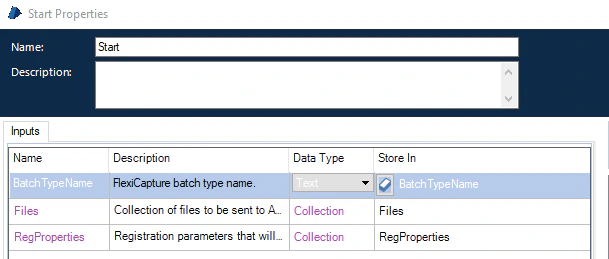
This action sends files to FC 12 for processing. For these files, FC will create a batch with a unique ID. The “Create Batch” action accepts the following as input:
  • BatchTypeName (Text Data Type) – the name of a FC batch. This is an optional parameter. If no batch name is specified, the “Default” batch type will be used.
  • Files (Collection Data Type) – a collection of files that will be sent to FC. This collection must have a Name field of type “Text” and a Content field of type “Binary.”
  • RegProperties (Collection Data Type) – a collection of batch registration parameters. This is an optional parameter. This collection must have a Name field of type “Text” and a Value field of type “Text.”
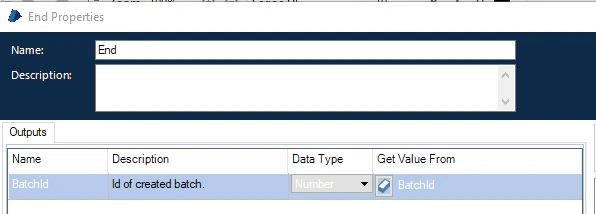
This action creates a batch of documents with a document corresponding to each input file. The program then processes this batch and its ID is returned to Blue Prism.

Get Batch Stage

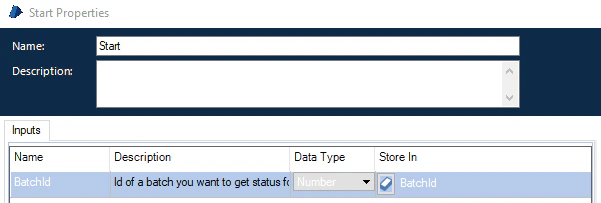
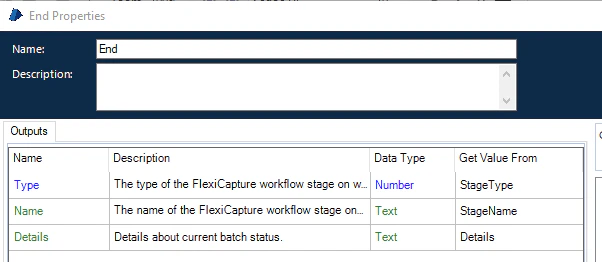
This action gets information about the current stage of a batch by its ID. The action accepts only batch IDs as input (i.e. BatchId variable of type “Number”). The outputs of this action are as follows:
  • Type (Number Data Type) – the type of the currents stage of the batch. Please refer to the ABBYY FlexiCapture documentation for a list of values corresponding to the predefined processing stages.
  • Name (Text Data Type) – the name of the currents stage of the batch.
  • Details (Text Data Type) – a message containing detailed information about the status of the batch.
Depending on the current stage of a batch, the user may decide on what to do next with the batch. For example:
  • For a batch at the “Import” stage (Type = 100), the user may decide to check its status after a while.
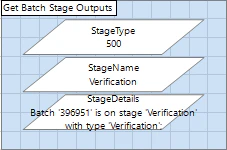
  • For a batch at the “Verification” stage (Type = 500), the user may want to call the “Get Batch Verification URLs” VBO action for this batch.
  • For a batch at the “Processed” stage (Type = 900), the user may want to call the “Fetch Batch Results” VBO action for this batch.
The “Get Batch Stage” action returns values to Blue Prism that correspond to the current status of batches. For example, if a batch arrives at the verification stage, the outputs will be populated as follows:

Get Batch Verification URLs

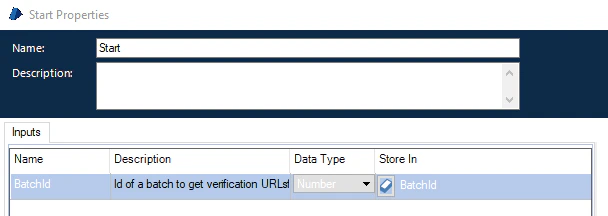
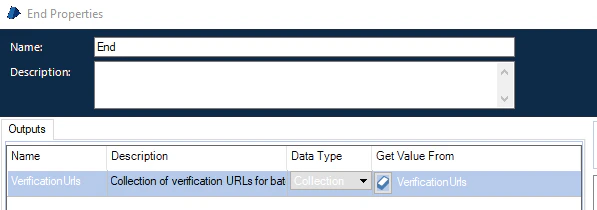
This action gets a set of URLs pointing to the Web Verification Station where a batch can be verified by its ID. It should be called when a batch arrives at the verification stage. This action accepts only BatchId variable of type “Number” as input. The output of this action is a collection of verification URLs for the batch. This action returns to Blue Prism URLs for verifying the batch.

Fetch Batch Results

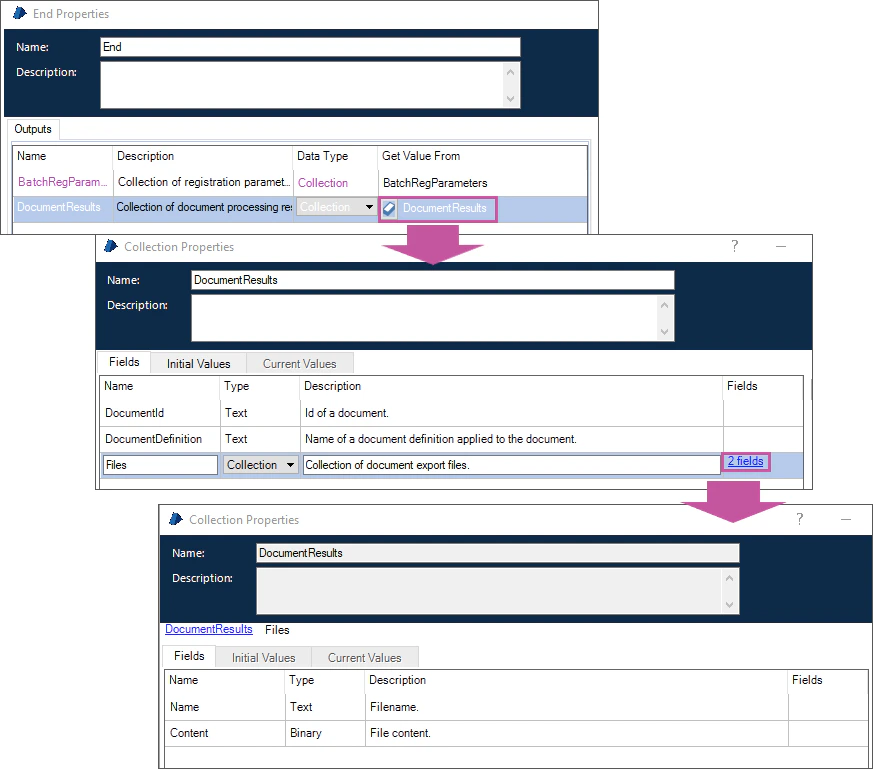
This action gets batch processing results. It should be called when a batch arrives at the “Processed” stage. This action accepts only BatchId variable of type “Number” as input. The outputs of this action are as follows:
  • A collection of registration parameters with Name and Value fields;
  • A collection of document processing results (DocumentResults) with the following fields:
    • DocumentId (Text Data Type) – the identifier of the document in ABBYY FlexiCapture;
    • DocumentDefinition (Text Data Type) – the name of the Document Definition corresponding to the document (i.e. its type);
    • Files (Collection Type) – a collection of export files for the document with Name (of type “Text”) and Content (of type “Binary”) fields.
This action provides Blue Prism with batch processing results, which can be used in a subsequent workflow.

Save Batch Results

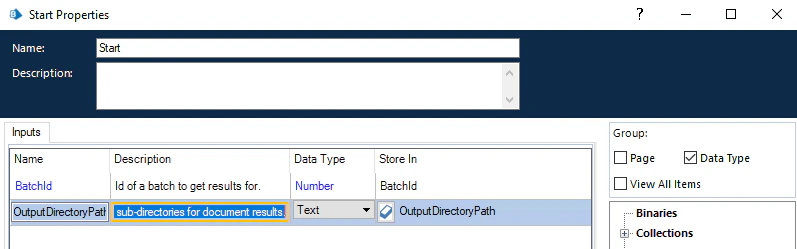
This action gets batch processing results. It should be called when a batch arrives at the “Processed” stage. This action allows you to save results of batch processing from FlexiCapture 12. It is an alternative to “Fetch Batch Results” action which saves result files locally. The “Save Batch Results” action accepts the following as input:
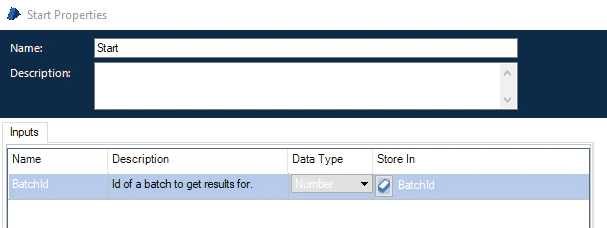
  • BatchId (Number Data Type) – Id of a batch to get results for.
  • OutputDirectoryPath (Text Data Type) – Path to output directory which will be used to create sub-directories for document results.
The outputs of this action are as follows:
  • A collection of registration parameters with Name and Value fields;
  • A collection of document processing results (DocumentResults) with the following fields:
    • DocumentId (Text Data Type) – the identifier of the document in ABBYY FlexiCapture;
    • DocumentDefinition (Text Data Type) – the name of the Document Definition corresponding to the document (i.e. its type);
    • Files (Collection Type) – a collection of export files for the document with Name (of type “Text”) and Content (of type “Binary”) fields.
This action provides Blue Prism with batch processing results, which are stored locally.

Check If Configured

This is an auxiliary action that checks if the “Configure” action has already been called. It is used by the “Create Batch”, “Get Batch Stage”, “Fetch Batch Results”, and “Get Batch Verification URLs” actions.
To learn more about Business Object Definition FlexiCapture 12 – Multitask VBO, launch the Process Studio in Blue Prism, open the properties of the Action item, select FlexiCapture 12 – Multitask VBO, and click the “i” icon.