
Before you configure the components, complete Install the Multi-Task Package and Configure your ABBYY FlexiCapture project for Blue Prism.
Configure the processes
1
Set the connection variables
In Blue Prism, open the System tab and expand the Environmental Variables group in the Processes node. For the values of the variables, specify the settings required to connect to ABBYY FlexiCapture, and then click Apply.
2
Open the sample processes
Open the Studio tab and expand the FlexiCapture 12 Processes group in the Processes node to see the imported sample processes.
3
Set the input folder
Open the Batch Sender process, and then open the properties of the InputDirPath data item. In Initial Value, specify the path to the folder the process should pick up files from, and save the changes.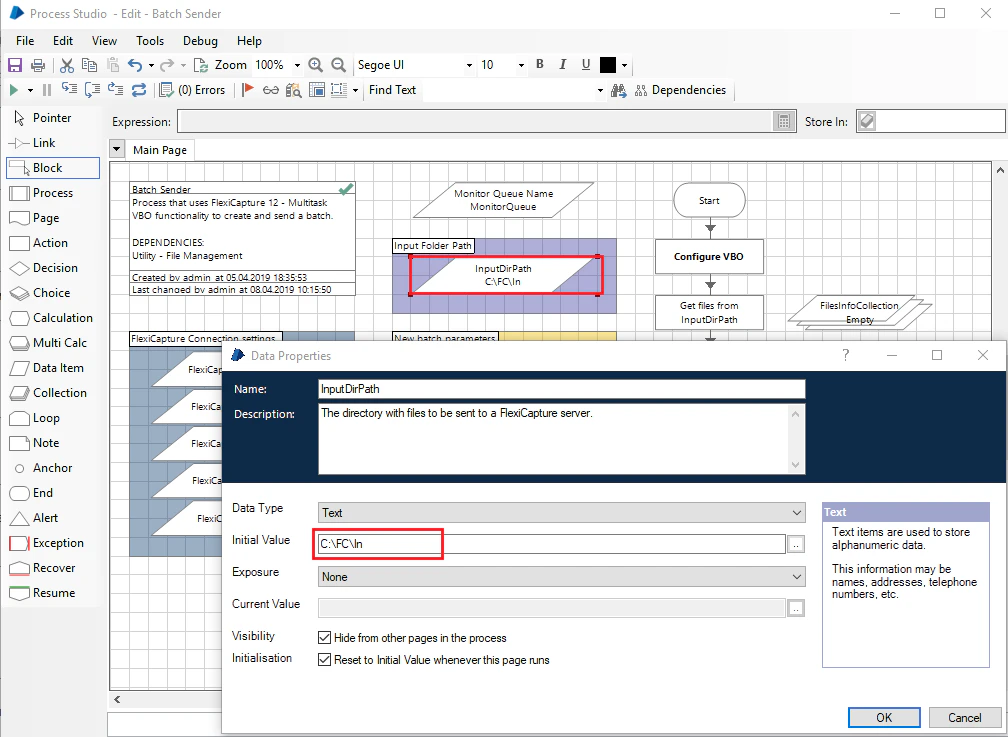
4
Add the images to process
Place the images to be processed into the input folder.
5
Set the output folder
Open the Batch Saver process, and then open the properties of the OutputDir data item. In Initial Value, specify the path to the folder where the process should save processing results, and save the changes.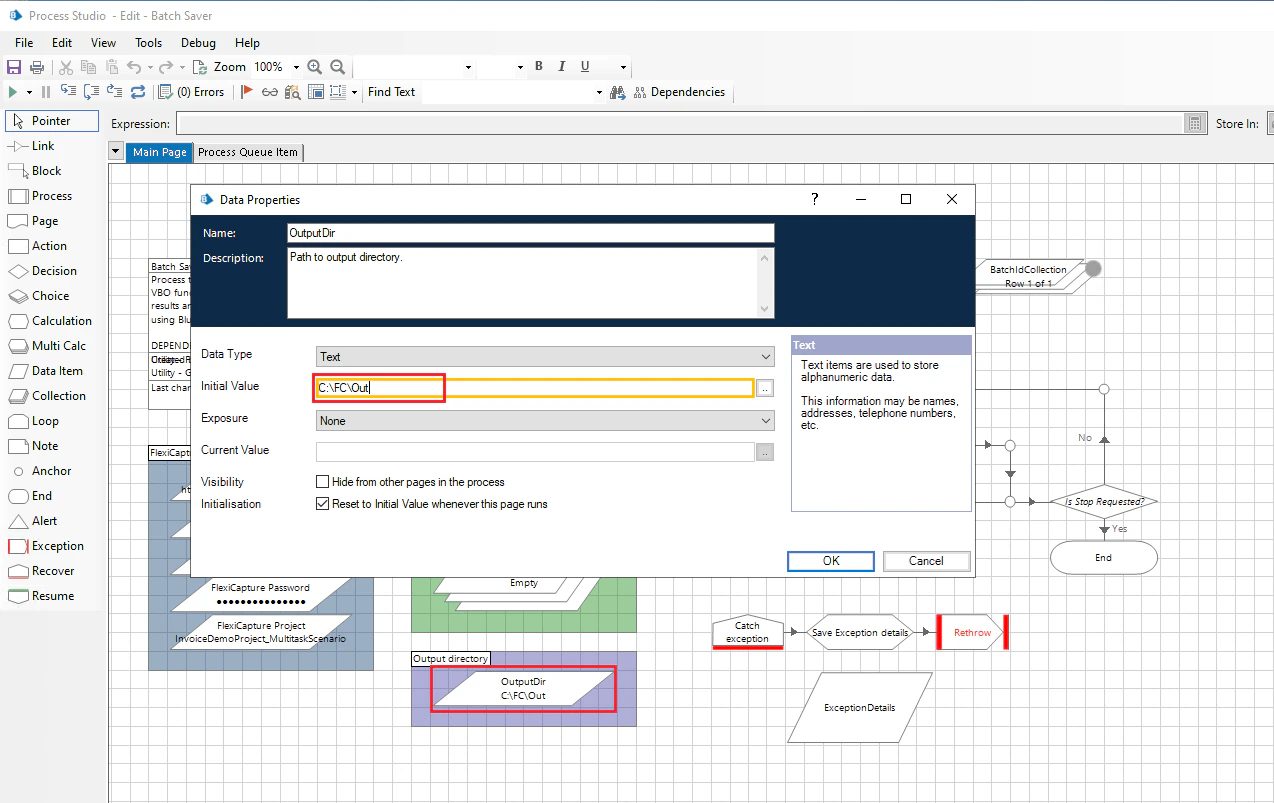
Start the processes
1
Find the processes and a connected resource
Open the Control tab. In the Available Processes pane, find the processes used by ABBYY FlexiCapture. Confirm that the Resources pane shows a resource with the 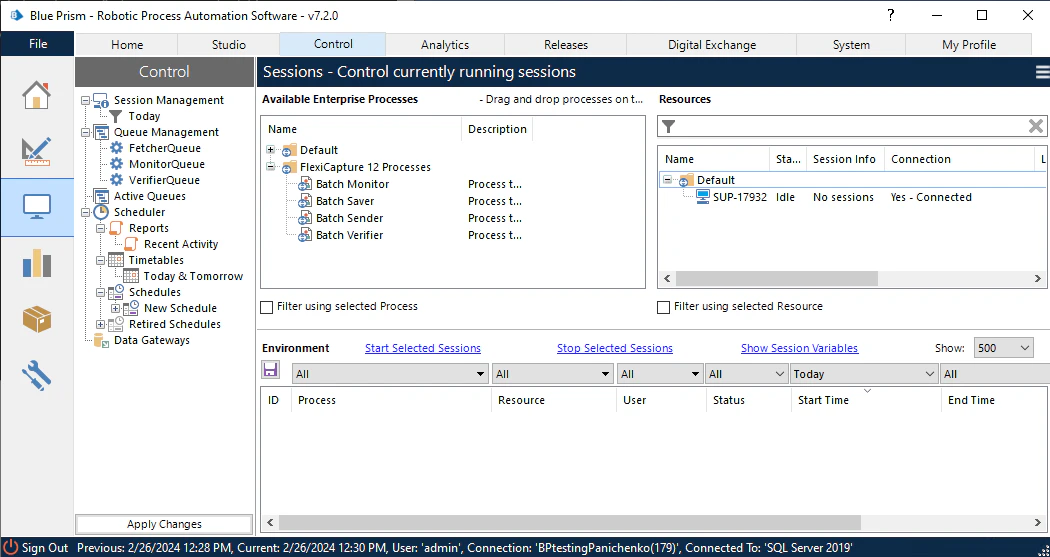
Yes - Connected status.2
Assign the processes to the resource
Drag the Batch Monitor and Batch Saver processes onto the connected resource. They appear in the Environment window with
Pending in the Status column.3
Start the processes
Select both processes, right-click them, and select Start on the shortcut menu. They run in the background, checking items in the MonitorQueue and FetcherQueue queues.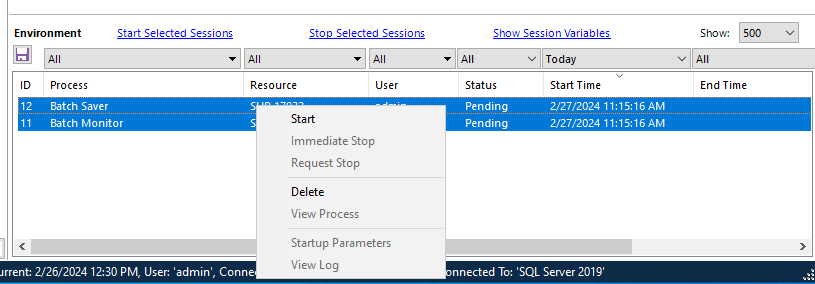
4
Start the Batch Sender process
Repeat the preceding steps for the Batch Sender process. It picks up files from the input folder, sends them to ABBYY FlexiCapture, and writes the ID of the new batch to the MonitorQueue queue.
5
Wait for the batch to be processed
Wait until the Batch Monitor process has checked the status of the batch.On success, Batch Monitor adds the batch ID to the FetcherQueue queue, and Batch Saver then places the processing result files into the output folder.If the batch ends up at the Verification stage, Batch Monitor adds its ID to the VerifierQueue queue instead. Start the Batch Verifier process to verify the batch on the Web Verification Station.