
Install the connector libraries on the M-Files server before you configure the workflow. For more information, see Install and use the M-Files workflow activity.
Configure the M-Files workflow
1
Create a workflow
In M-Files Admin, navigate to Connections to M-Files Server → Local Computer → Document Vaults, select your document vault, and then click Workflows. Click New Workflow. You can also modify an existing workflow.
2
Create a state
Select the workflow you just set up and click New State.
3
Name the state
In the Name field, type a name for the state, for example
In Processing by FlexiCapture.4
Add a Run script action
On the Actions tab of the State Properties window, select the Run script option and click Edit Code.For more information about workflow state actions, see the M-Files User Guide.
5
Paste the script
Paste the following script into the Edit VBScript Code window, and provide your ABBYY FlexiCapture connection settings, the project name, and the batch type you are going to use.When executed, this script sends a document from M-Files to ABBYY FlexiCapture for further processing using the M-Files Workflow Activity library. The script stops after the file has been sent.
The ABBYY FlexiCapture user whose credentials are specified in the script must have either the Scanning Operator role for the project and batch type specified in the script, or the Administrator role.
6
Save the script
Close the Edit VBScript Code window and click OK.
7
Create the approval state
Create another state, for example
Waiting for approval, using the same New State procedure. This state indicates that the document is ready for approval.M-Files workflow – Send to FlexiCapture.vbs, in the M-Files Workflow Activity folder of the connector distribution package.
For more information about writing VBScript code in M-Files, see Available VBScript Variables and How do I write VBScript code for M-Files purposes in the M-Files User Guide.
Sample workflow
The following diagram shows a sample workflow for unattended processing of documents in ABBYY FlexiCapture.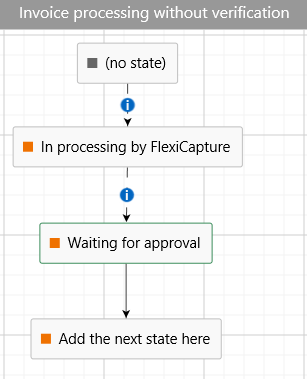
Configure the ABBYY FlexiCapture project
Select the Unattended schema for the workflow in the ABBYY FlexiCapture project. This mode processes documents without operator involvement.1
Open the workflow settings
Click Batch Type Properties → Workflow. For the Default batch type, click Project → Project properties instead.
2
Select the Unattended schema
Select Schema: Unattended.
The project also needs an export profile to send the processing results back to M-Files. For more information, see Configure data export from ABBYY FlexiCapture to M-Files.