
Install the connector libraries on the M-Files server
1
Copy the libraries to the server
Copy the following files from the
M-Files Workflow Activity folder in the distribution package into any folder on the M-Files server:Abbyy.MFiles.FlexiCapture.Activity.dllAbbyy.Connectors.FlexiCaptureConnector.dll
2
Register the library in the registry
Run the Command Prompt as administrator, go to the folder where you placed the libraries, and run the command for your server architecture.For a 64-bit M-Files server:For a 32-bit M-Files server:
3
Restart the M-Files server
Restart the M-Files Server 2018 service.
HKEY_LOCAL_MACHINE\SOFTWARE\Classes\Abbyy.MFiles.FlexiCapture.Activity.ConnectionSettingsHKEY_LOCAL_MACHINE\SOFTWARE\Classes\Abbyy.MFiles.FlexiCapture.Activity.FlexiCaptureWebClientHKEY_LOCAL_MACHINE\SOFTWARE\Classes\Abbyy.MFiles.FlexiCapture.Activity.MFilesTargetContextHKEY_LOCAL_MACHINE\SOFTWARE\Classes\Abbyy.MFiles.FlexiCapture.Activity.RegistrationParameter
Unregister the library
Run the Command Prompt as administrator, go to the folder where you placed the libraries, and run the command for your server architecture. For a 64-bit M-Files server:Update the library
To updateAbbyy.MFiles.FlexiCapture.Activity.dll, unregister the previously registered version and then register the new version. Restart the M-Files Server service for the changes to take effect.
Import the FlexiCapture Demo Vault
The connector distribution package contains a sample vault named FlexiCapture Demo Vault. It already includes a metadata structure for invoices and two preconfigured workflows, one for unattended processing and one for processing with verification.1
Unzip the vault archive
Unzip the
FlexiCapture Demo Vault.zip archive.2
Import the vault
Import the vault to the M-Files server. In the Index file on the server field, provide the following path:
3
Add users to the vault
Add the M-Files users who will work with the vault.
Specify the ABBYY FlexiCapture connection settings
For the scripts in the workflow to work correctly, specify the settings used to connect to the ABBYY FlexiCapture Application Server. These settings go in the head section of each script.1
Open the workflows
In M-Files Admin, open the FlexiCapture Demo Vault that you imported and click Workflows.
2
Open the state script
- Select one of the workflows and start editing the In Processing by FlexiCapture state.
- Click the Actions tab, select the Run Script option, and click Edit Code.
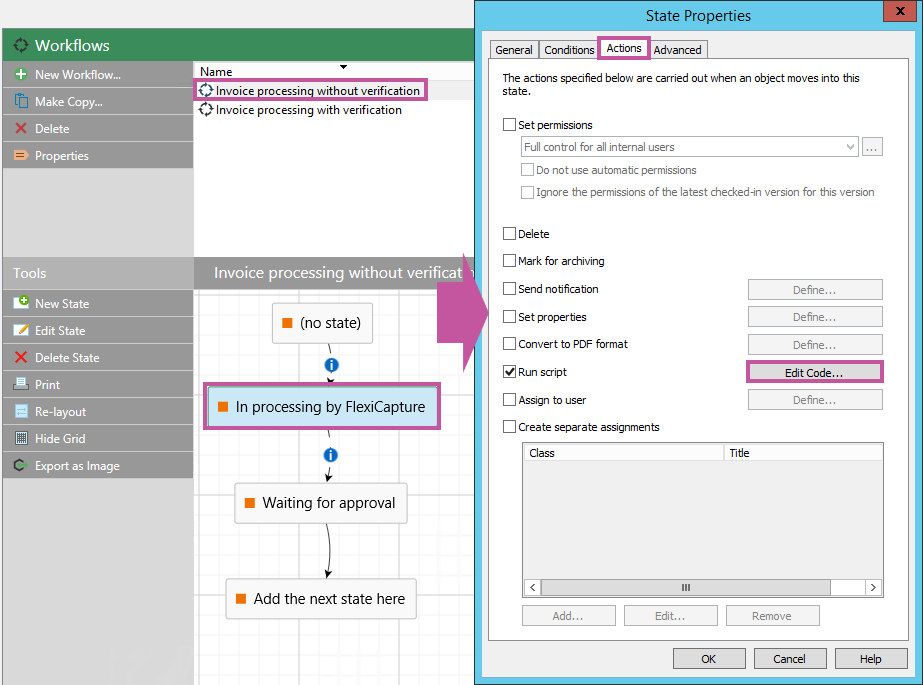
3
Set the connection variables
In the Edit VBScript Code dialog box, specify the following variable values:
4
Repeat for the other workflow
Make identical changes in the other sample workflow.
Additional settings for ABBYY FlexiCapture Cloud
1
Set the Cloud instance URL
In the
szFCServerUrl variable, specify the URL of the ABBYY FlexiCapture Cloud instance that your company is registered in.2
Set the tenant name
Uncomment line 3 of the script and specify the name of your company:
3
Set the tenant credentials
Specify the credentials used for your company’s tenant in ABBYY FlexiCapture Cloud:
4
Apply the tenant name to the connection
Uncomment line 22 of the script so the company name is used when connecting to the ABBYY FlexiCapture server: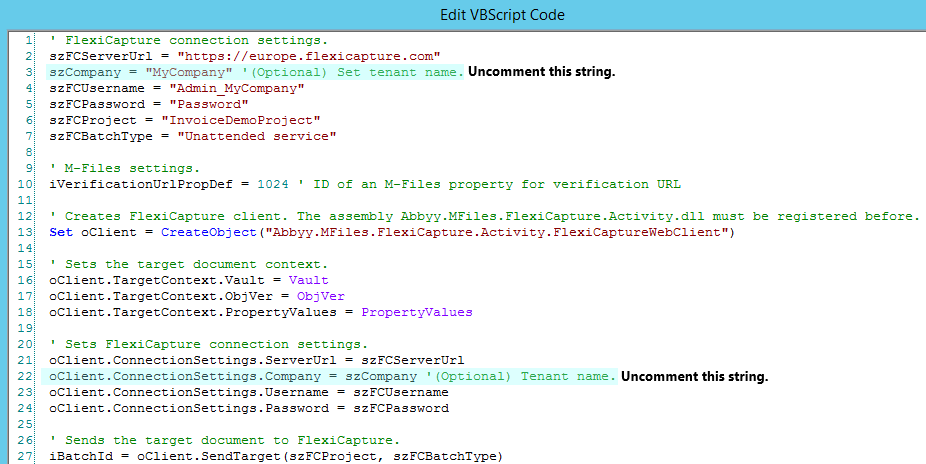
Choose a processing scenario
A workflow in M-Files can be configured for one of the following scenarios. Each configuration requires its own script.- Configure unattended document processing in M-Files
- Configure document processing with verification in M-Files