
Install the connector libraries on the M-Files server before you configure the workflow. For more information, see Install and use the M-Files workflow activity.
Configure the M-Files workflow
1
Create a workflow
In M-Files Admin, navigate to Connections to M-Files Server → Local Computer → Document Vaults, select your document vault, and then click Workflows. Click New Workflow. You can also modify an existing workflow.
2
Create a state
Select the workflow you just set up and click New State.
3
Name the state
In the Name field, type a name for the state, for example
In Processing by FlexiCapture.4
Add a Run script action
On the Actions tab of the State Properties window, select the Run script option and click Edit Code.
5
Paste the script
Paste the following script into the Edit VBScript Code window, and provide your ABBYY FlexiCapture connection settings, the project name, and the batch type you are going to use.
The ABBYY FlexiCapture user whose credentials are specified in the script must have the Scanning Operator, Verification Operator, and External User roles for the project and batch type specified in the script, or the Administrator role.
6
Save the script
Close the Edit VBScript Code window and click OK.
7
Add a property definition for the verification URL
The state needs a property to hold the URL that the script generates.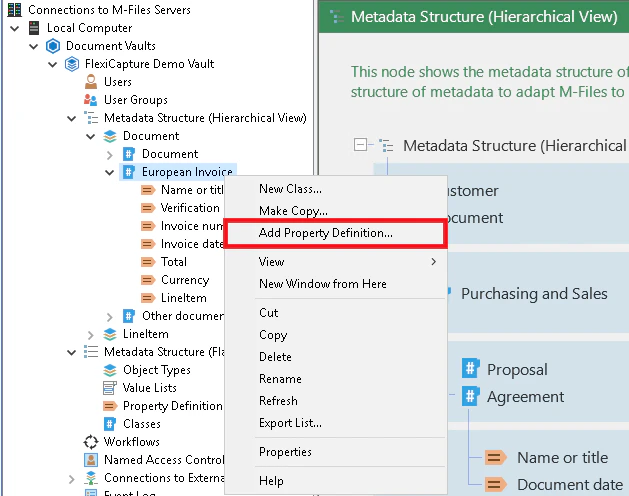
- Click Connections to M-Files Server → Local Computer → Document Vaults and select your document vault.
- Add a new property definition to the document class.
8
Configure the property definition
In the Property Definition Properties - New Property Definition dialog box, type a name for the property in the Name field, for example 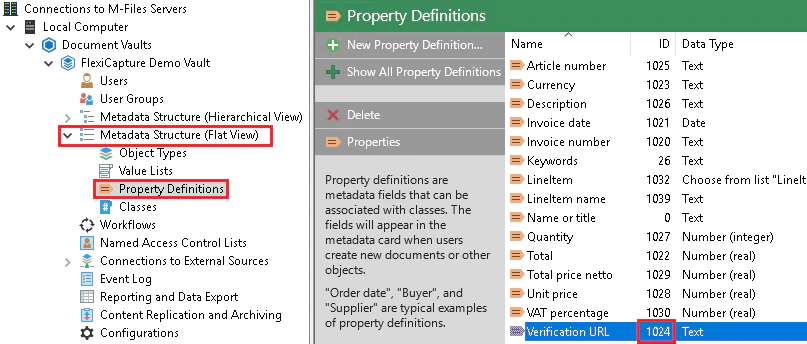
Verification URL, and specify Data type: Text and Content: Text.In the script code, assign the ID of the property to the iVerificationUrlPropDef variable.To look up the ID of the new property, select the Admin vault in M-Files and expand the Metadata Structure (Flat View) list. Select Property Definitions. The list of all property definitions appears, with the IDs in the ID column on the right.9
Create the verification state
Create another state, for example 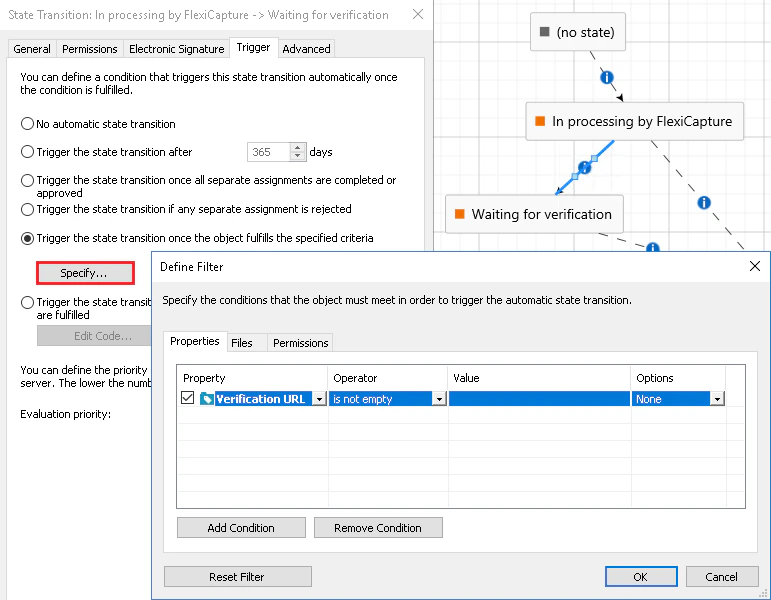
Waiting for verification, using the same New State procedure. This state indicates that the document will stop at the verification stage in ABBYY FlexiCapture.You can set up the document to enter this state when the Verification URL field in the document properties holds a link to the verification stage.10
Create the approval state
Create another state, for example 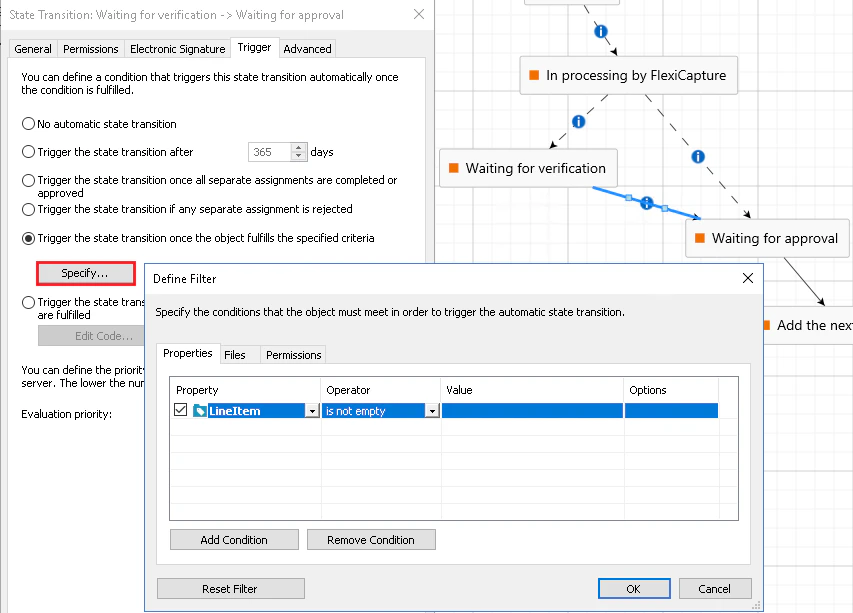
Waiting for approval, using the same New State procedure. This state indicates that the document is ready for approval.You can set up the document to enter this state when certain required fields of the document are filled in.How the verification state behaves
The script runs in the In Processing by FlexiCapture state and sends documents to ABBYY FlexiCapture for further processing. That state ends in either of two cases: the document stops at the verification stage in ABBYY FlexiCapture, or the document skips the verification stage because of its high quality. If the document stops at the verification stage, ABBYY FlexiCapture generates a URL linking to the task created for the document on the Web Verification Station. It then writes that URL to the document properties in M-Files.Sample workflow
The following diagram shows a sample workflow for processing documents in ABBYY FlexiCapture with verification.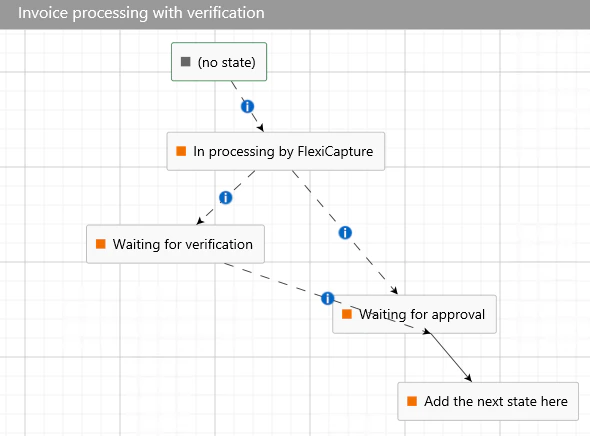
Configure the ABBYY FlexiCapture project
The verification scenario requires additional configuration in ABBYY FlexiCapture.1
Open the verification stage settings
Click Project → Project properties, select Schema: Advanced on the Workflow tab, and then select Verification and click Edit.
2
Enable the web stations
On the General tab, select the Enable web stations option and click OK.
3
Add a stage after Verification
Create a new User type stage after the Verification stage by clicking Stage.
4
Name the stage
On the General tab, type
Mark No Verification in the Name field. The scenario requires exactly this name. Then clear the linked to previous option.5
Add an entry condition
On the Entry Conditions tab, select the Under these conditions option and add a new rule by clicking Rule.
6
Set the rule script
In the Rule Settings dialog box, select Condition type: Script, open the script editor, select Script Language: C# .Net, and paste the following script code:
7
Save the settings
Click OK.
The project also needs an export profile to send the processing results back to M-Files. For more information, see Configure data export from ABBYY FlexiCapture to M-Files.