Input properties
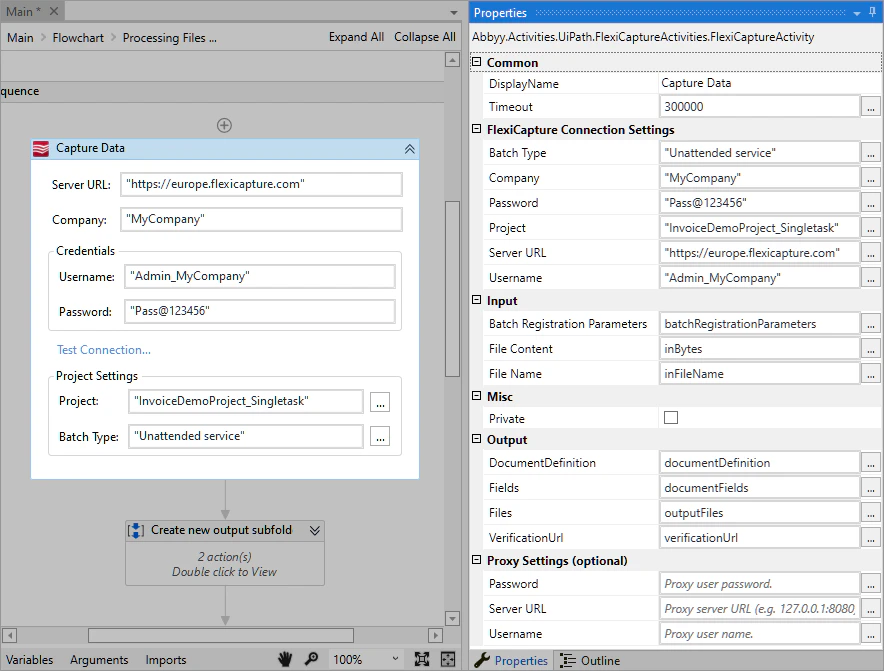
The Input fields transfer an image file and its name to the activity.
Registration parameter values can specify the names of export files when ABBYY FlexiCapture exports them. For more information, see Registration parameters.
The
Dictionary<String, String> class is recommended for passing the registration parameters, and the dictionary must be initialized. The field value may look like this:
Output properties
The Output fields specify the variables in which the activity saves the results.
The contents of Files depend on the export settings specified in the ABBYY FlexiCapture project. They can include a source file converted to searchable PDF, files with signature images, and files with captured data.
The activity returns a VerificationUrl that requires Windows authentication. If you plan to send this URL to a verification operator, make sure that the corresponding ABBYY FlexiCapture account is registered on the ABBYY FlexiCapture server.
FlexiCapture connection settings
The FlexiCapture Connection Settings section holds the settings required to connect to the ABBYY FlexiCapture server. Provide the server address and the credentials of the account used to connect, and then click Test Connection to check that the connection is established. Specify the project and batch type that accept files from the UiPath workflow process. If you are using ABBYY FlexiCapture Cloud or a local multi-tenant system, also specify your company (tenant) name. Specify these values either as a VB expression enclosed in quotes, or pass them as variables of typeString.
For the given project and batch type, the ABBYY FlexiCapture user needs either the Administrator role, or the Scanning Operator role to send documents plus the Verification Operator role to receive verification URLs. For more information, see User roles and permissions.
Processing timeout
Open the activity properties and navigate to Common to set a custom timeout, in milliseconds, for awaiting ABBYY FlexiCapture processing results. The activity throws an exception when the time period expires. The default timeout value is 300,000 milliseconds.Proxy settings
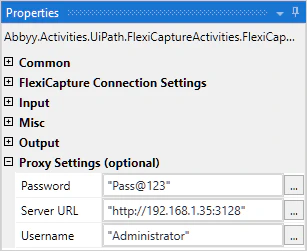
If you are using a proxy, fill in the Server URL, Username, and Password fields in the Proxy Settings (optional) section.