Prerequisites
Install the ABBYY FlexiCapture 12 Project Setup Station before you configure the project. It is required for both ABBYY FlexiCapture Distributed Edition and ABBYY FlexiCapture Cloud.How export settings are organized
ABBYY FlexiCapture uses projects to process documents. ABBYY FlexiCapture identifies the type of each document and applies the Document Definition prepared for that type. Every Document Definition has one or more export profiles, which determine how document images and data are exported.Open or create a project
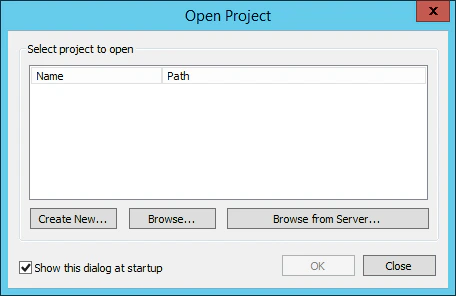
If you already have a project that needs export to UiPath, open it. Otherwise, create one. Launch the Project Setup Station, and in the Open Project dialog box click one of the following:- Create New to create a new project.
- Browse to open an existing project stored on your local drive.
- Browse from Server to open a project that you previously uploaded to the ABBYY FlexiCapture Application Server.
Start from the predefined project instead
A predefined project for processing invoices ships with the connector. It contains the project files and sample images. FindInvoiceDemoProject_Multitask.zip in the connector installation folder:
Upload the project to the Application Server
If you opened your project locally, upload it to the ABBYY FlexiCapture Application Server.1
Start the upload
Click File → Upload Project to Server.
2
Specify the server and credentials
In the Upload Project to Application Server dialog box, specify the address of the server, the protocol to be used, and your credentials.For ABBYY FlexiCapture Cloud, complete the URL field with the ABBYY FlexiCapture Cloud instance that your company is registered in: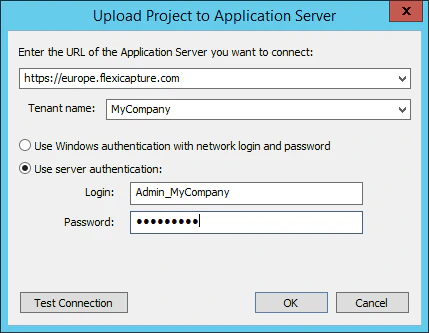
https://europe.flexicapture.comhttps://australia.flexicapture.comhttps://usa.flexicapture.com
3
Test the connection and upload
Click Test Connection to make sure you have entered the correct data, and then click OK to upload the project.
4
Open the uploaded project
When the 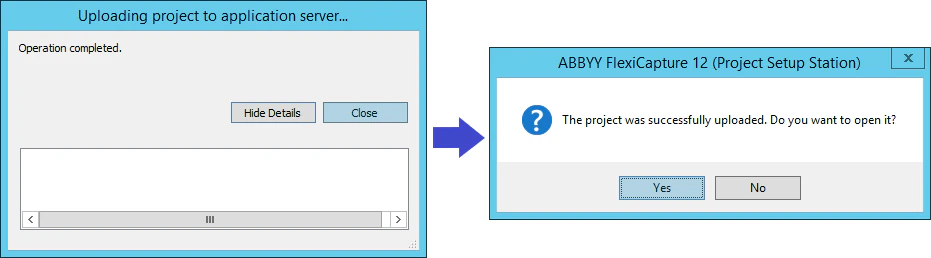
Operation completed message appears, click Close. In the next dialog box, click Yes to open the uploaded project from the server.Version mismatch when uploading to the cloud
Uploading a project to the cloud, or opening one from the cloud, can fail with this message:Verify that the Processing Server is running
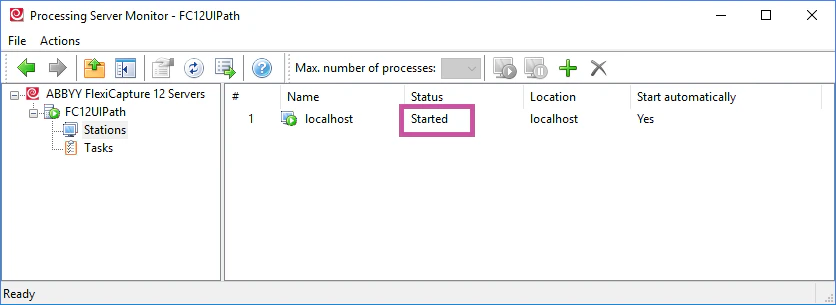
Confirm that the ABBYY FlexiCapture Processing Server is running and that the Processing Stations have been added, set up, and started. Launch the Processing Server Monitor by selecting Start → All Programs → ABBYY FlexiCapture 12 Servers → Processing Server. Both the server and the stations should have the Started status.