
Create the UiPath Orchestrator queues
1
Open the Queues tab
Open the Queues tab in Orchestrator.
2
Create the three queues
Create queues named Monitor Queue, Verifier Queue, and Fetcher Queue. For each one, set Unique Reference to Yes and Auto Retry to No.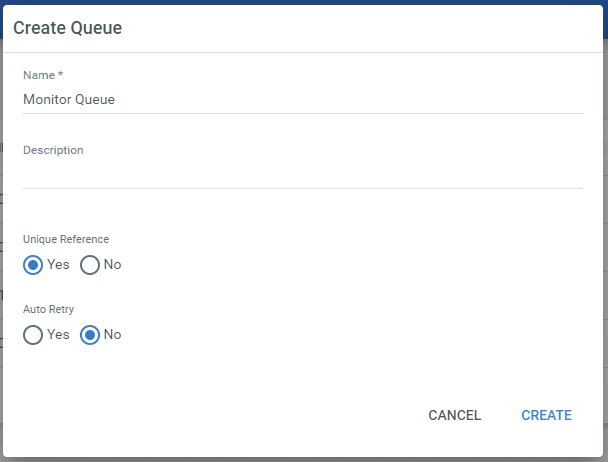
Create the UiPath assets
UiPath Orchestrator assets and credentials store the settings that the processes use to connect to ABBYY FlexiCapture 12.1
Open the Assets tab
Log in to Orchestrator as an administrator and go to the Assets tab.
2
Create the FlexiCapture Server Address asset
Create a Text-type asset named FlexiCapture Server Address, and specify the ABBYY FlexiCapture Application Server address as its Value.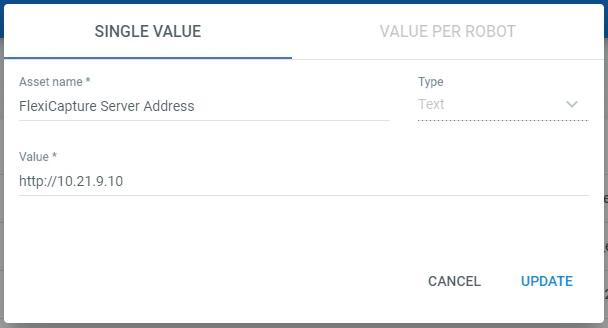
3
Create the FlexiCapture Company asset
Create a Text-type asset named FlexiCapture Company and specify the name of the tenant on the ABBYY FlexiCapture Application Server. This asset is optional, and it is needed only if you are using ABBYY FlexiCapture Cloud or a local multi-tenant system.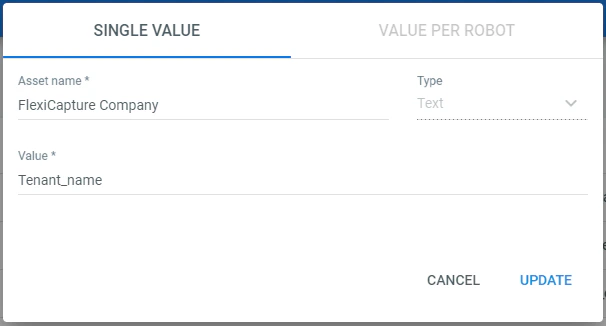
4
Create the FlexiCapture Project Name asset
Create a Text-type asset named FlexiCapture Project Name and specify the name of the project you will use to process documents.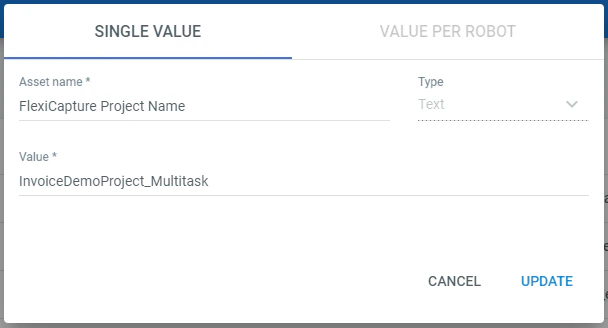
5
Create the credentials
Create a Credential-type asset named FlexiCapture Credentials, and complete the Username and Password fields with the ABBYY FlexiCapture user name and password.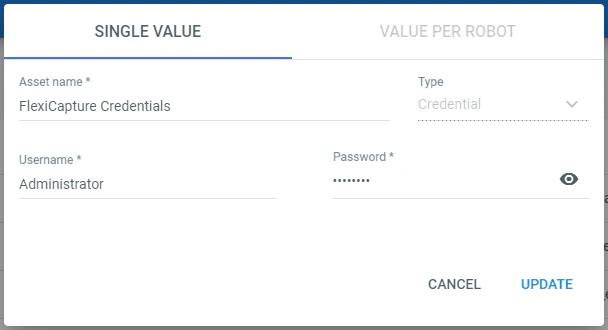
The user specified in the asset must have both the Scanning Operator and Verification Operator roles, or the Administrator role.
Launch the Batch Sender, Batch Monitor, Batch Verifier, and Batch Fetcher processes
For more information about the project, see Configure your ABBYY FlexiCapture project for UiPath.
You also need at least two UiPath Robots. One robot should always be running the Batch Monitor process, while another robot, or several, launches the Batch Sender, Batch Verifier, and Batch Fetcher processes.
You can create the robots on different machines, or create them on a single machine running Windows Server.
1
Create the robots
Create two standard robots, one of which is of the Unattended type.
2
Publish the processes
Publish the Batch Monitor, Batch Sender, Batch Verifier, and Batch Fetcher processes to Orchestrator.
3
Deploy each process
For each published package, deploy the process in the same environment that the robots belong to.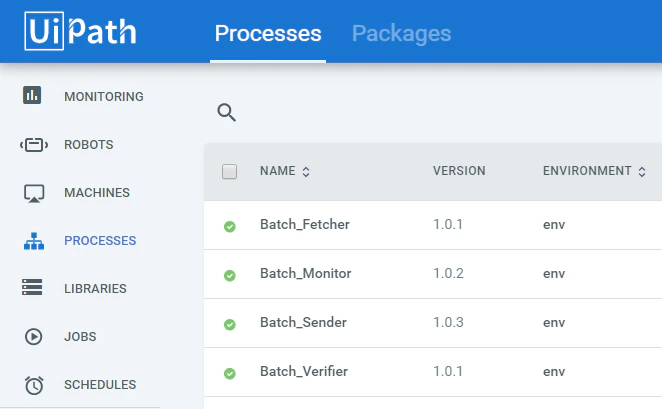
4
Start Batch Monitor
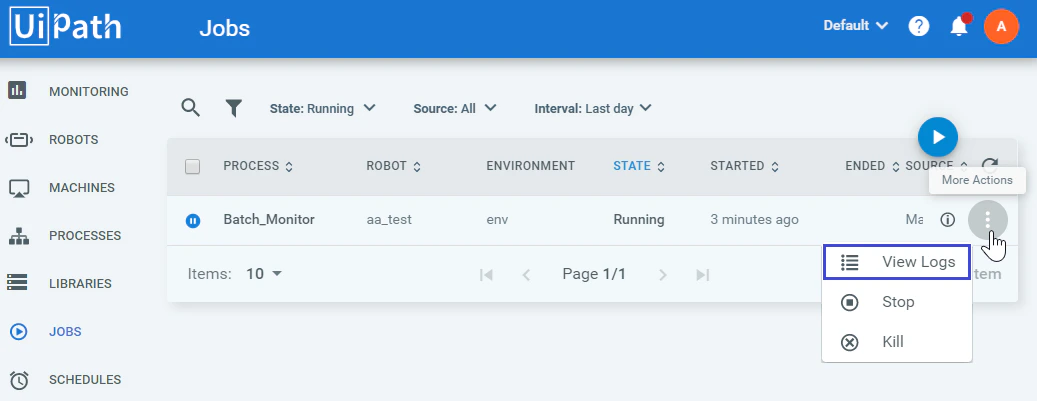
Go to the Jobs tab in Orchestrator. Create a new job for the Batch Monitor process and set it to execute on the Unattended-type robot.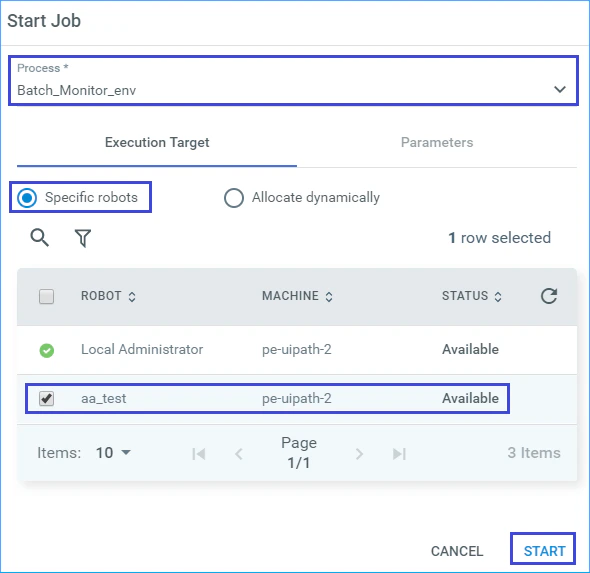
5
Start Batch Sender on a different robot
This process sends files from the selected folder to ABBYY FlexiCapture for processing. You can launch it from the Orchestrator Jobs tab, from UiPath Studio, or from the system tray of the robot’s machine.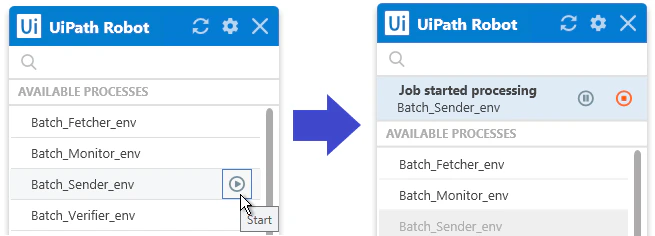
6
Wait for processing to finish
When batches are processed successfully, the transaction status in the Monitor Queue changes to Successful and new transactions appear in the Fetcher Queue.
7
Start Batch Fetcher
Launch the Batch Fetcher process to download the batch processing results. The transaction status in the Fetcher Queue changes to Successful.
8
Handle batches that reach verification
If a sent batch reaches the verification stage, Batch Monitor creates a transaction with the batch ID in the Verifier Queue. When transactions with the New status exist in that queue, launch the Batch Verifier process to get a batch verification URL, and then verify the document data and complete the verification task.
Launch Batch Processor – single process
Before you launch the process, make sure the ABBYY FlexiCapture project has been uploaded to the Application Server and set up correctly. For more information, see Configure your ABBYY FlexiCapture project for UiPath.
1
Open the process
Open Batch Processor – single process in UiPath Studio, and then open the Variables tab.
2
Set the connection variables
Specify the settings for connecting to ABBYY FlexiCapture using these variables:
FlexiCaptureServerUrl, FlexiCaptureCompany, FlexiCaptureUsername, FlexiCapturePassword, FlexiCaptureProject, and FlexiCaptureBatchType.For the InvoiceDemoProject_Multitask project, FlexiCaptureBatchType takes one of two values:- Unattended service demonstrates a processing scenario without verification.
- Attended service demonstrates a processing scenario with verification.
3
Prepare the input images
Create a new folder on your local machine and copy several images into it from the ABBYY FlexiCapture project’s Images folder.
4
Run the process
Go to the Design tab in UiPath Studio and click Run.
5
Select the image folder
Specify the folder where you placed the sample images. The files in that folder are sent to ABBYY FlexiCapture for processing.
6
Finish according to your scenario
Wait until file recognition has finished, and then do one of the following:
- Without verification, choose a folder where the processing results are saved.
- With verification, complete the verification first, and then choose a folder where the processing results are saved.