
Skip the Create view
Skipping the Create view takes a new case straight to case configuration.1
Open the case settings
Open the case in Case types and click Settings.
2
Select the option
On the General tab, select Skip ‘Create’ view when users create a new case.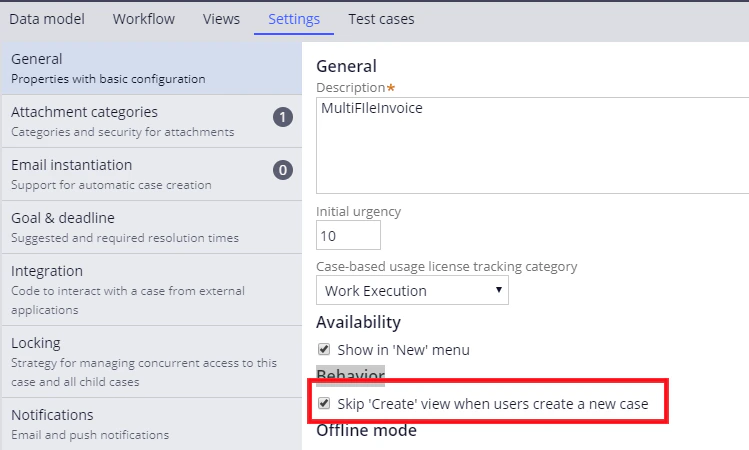
How users attach files to a case
In a configured case, the user clicks Add attachment → File from device, selects the files and clicks Attach, and then clicks Submit to run the workflow.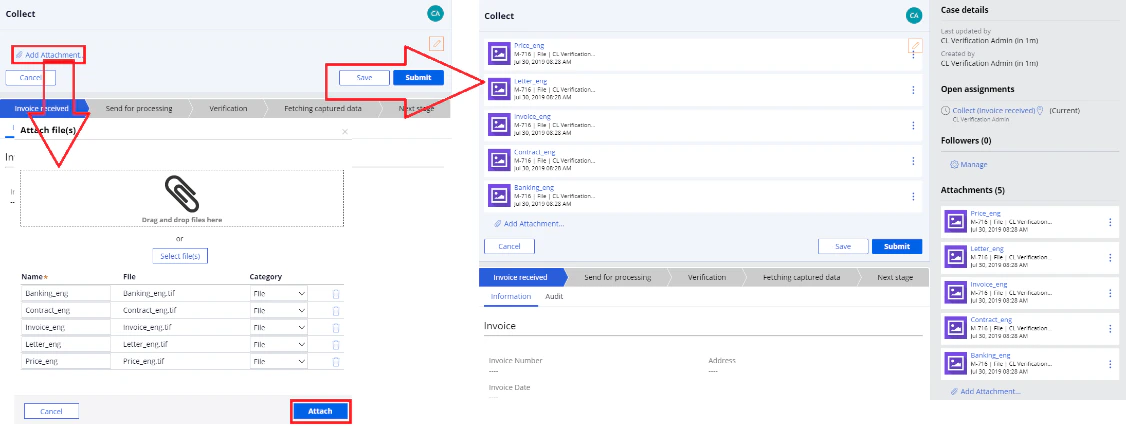
Create the file attachment interface
1
Open the flow
Open the
InvoiceReceived_Flow flow in Dev Studio by clicking Record → Process → Flow, or App → <case name> → Process → Flow.2
Assign the flow action
Open the properties for the connector of the two stages. In the Flow action field, add a flow action for adding files.For more information, see Creating a flow action.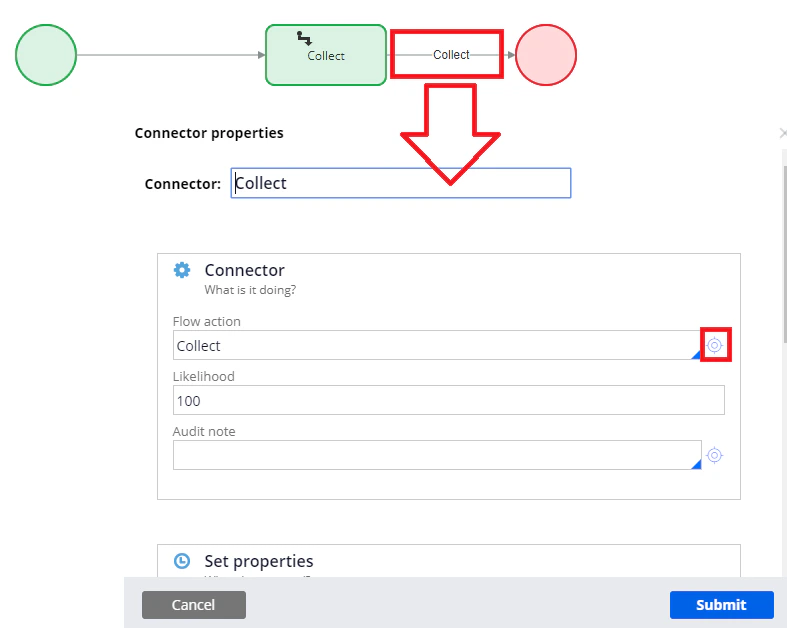
How the verification page appears
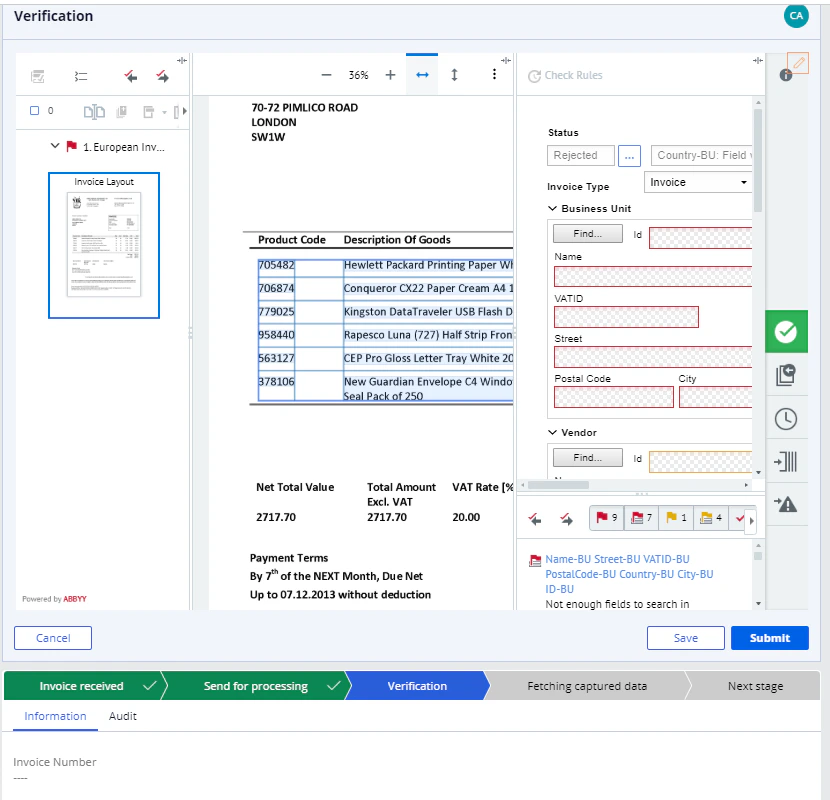
The verification page displays in the case header when the document arrives at the verification stage. To continue processing the document after verification, the operator clicks Complete Task, waits for theTask completed message, and then clicks Submit.
Create the verification page interface
1
Open the flow
Open the
Verification_Flow flow in Dev Studio by clicking Record → Process → Flow, or App → <case name> → Process → Flow.2
Assign the flow action
Open the properties for the connector of the two stages. In the Flow action field, add a flow action holding a verification page.For more information, see Creating a flow action.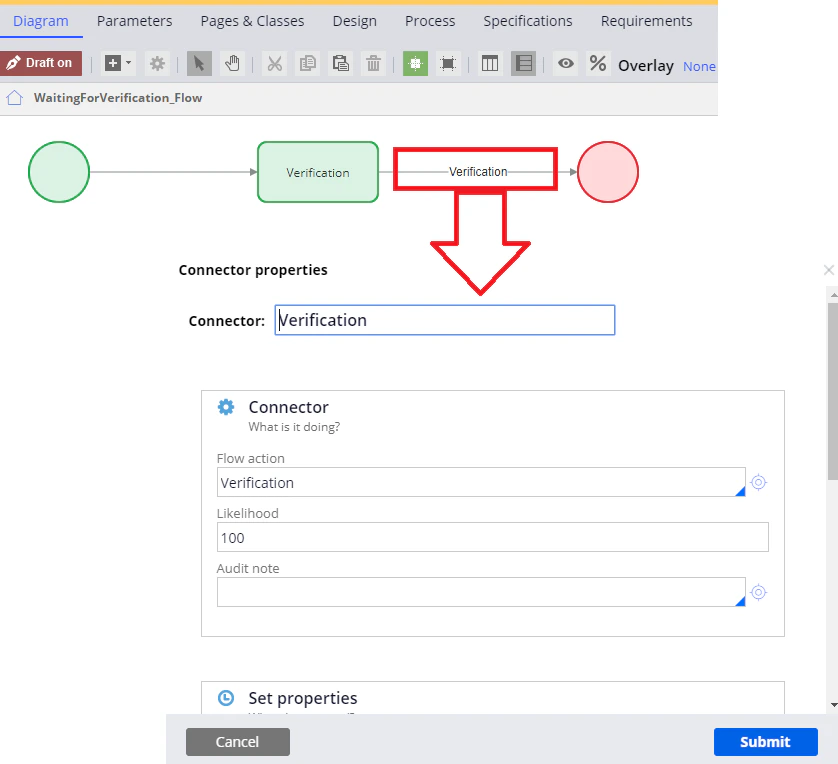
Skip the verification stage
A batch that skips verification on the ABBYY FlexiCapture side goes straight to theProcessed stage, so the case does not need to verify it either. That happens when no verification stage is set up, and for other reasons.
1
Create the validation rule
Select the verification stage in the workflow, click the Validation tab, and create a new
VerificationUrlEmpty rule.2
Set the condition
Create a 
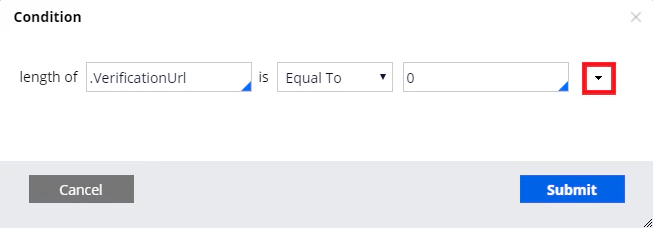
length of .VerificationUrl is Equal To 0 rule.Create the pyCaseInformation section
A section is what displays the data received from ABBYY FlexiCapture in a Pega case.1
Create the section
On the App tab, click Create → User Interface → Section.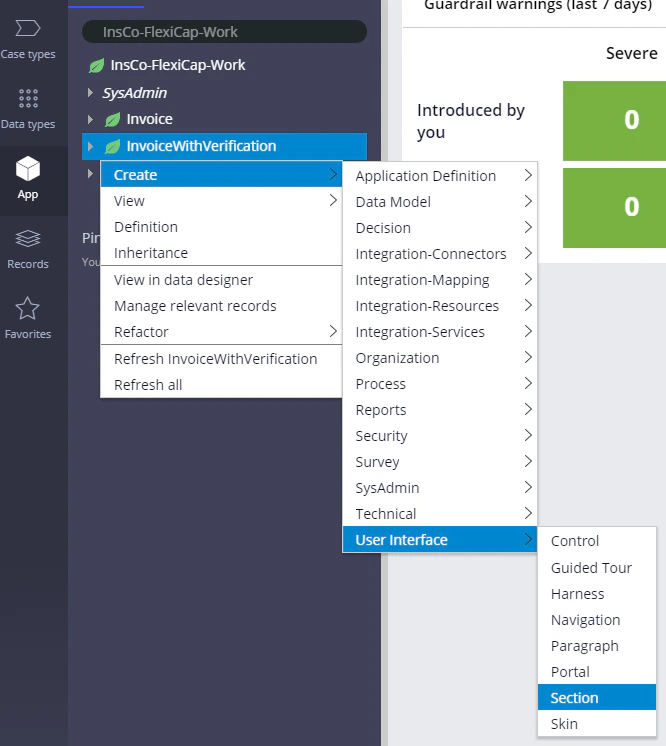
2
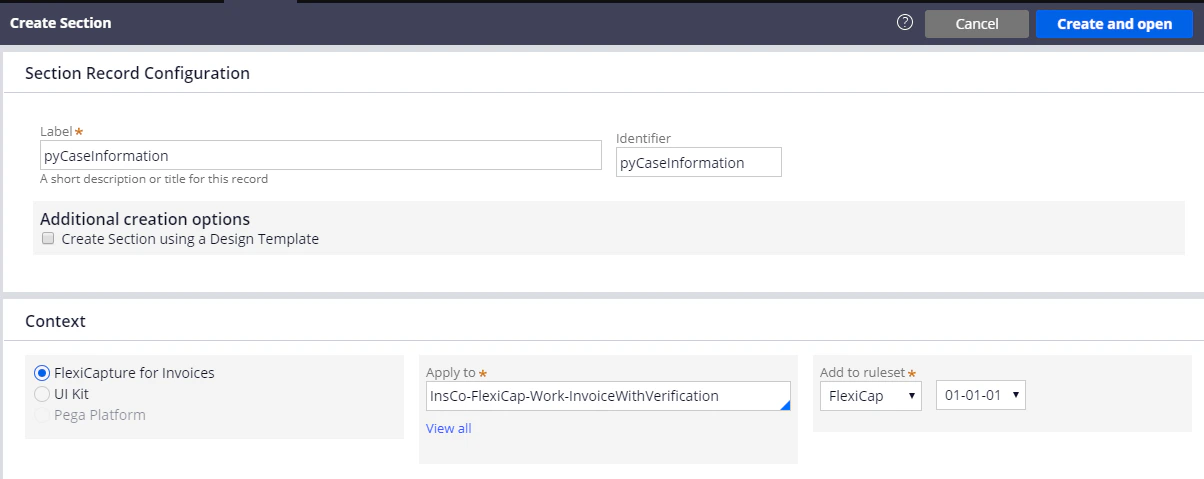
Name the section
- In the Label and Identifier fields, enter
pyCaseInformation. - Make sure that the section is being created within the context of the application.
- Make sure that the full name of the case type is specified in the Apply to field.
- Click Create and open.
3
Turn off auto-generated HTML
Open the section you created, click the HTML tab, and clear the Auto-generated HTML option.
4
Paste the section HTML
In the HTML Source field, paste the code from the
pyCaseInformation.html file, which is in this folder: