
Data model fields
Add the following fields on the Data Model tab, in addition to the required Attachments, BatchId, and VerificationUrl fields: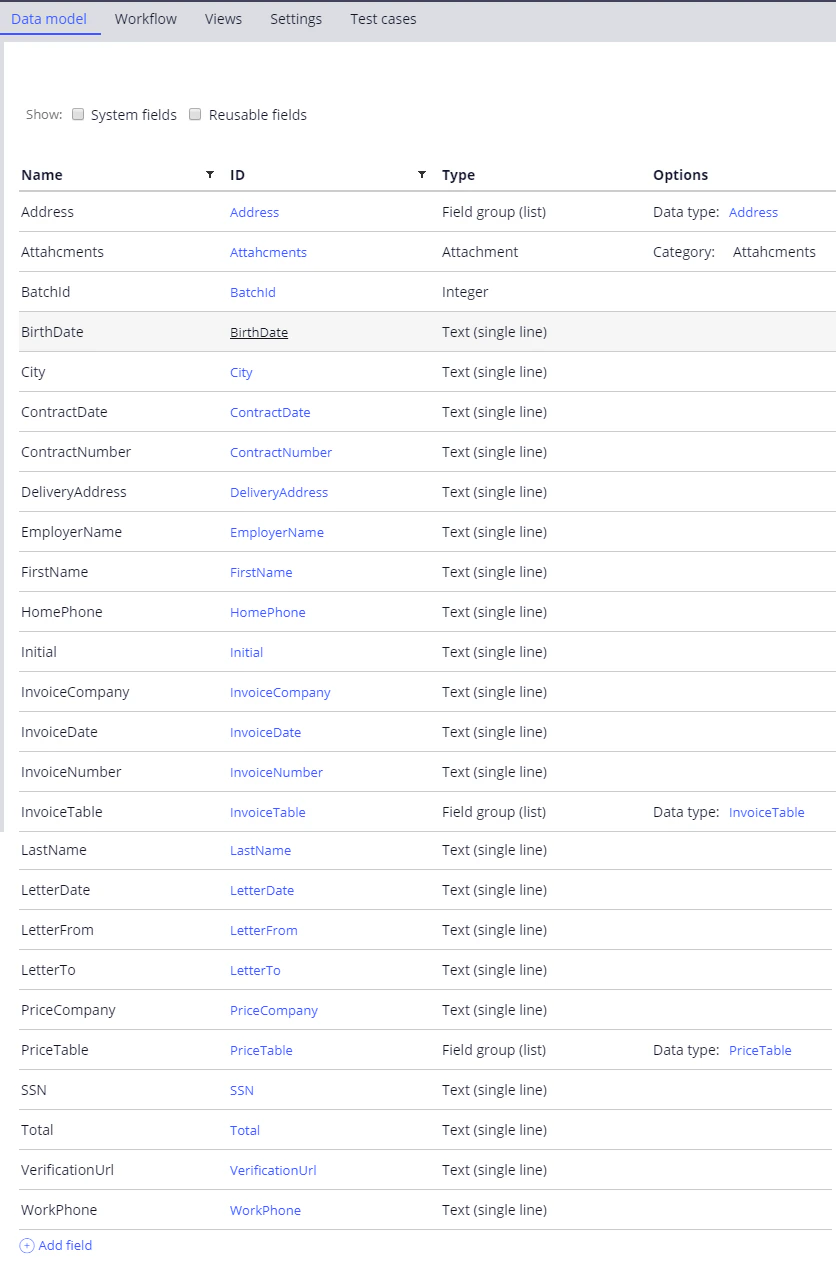
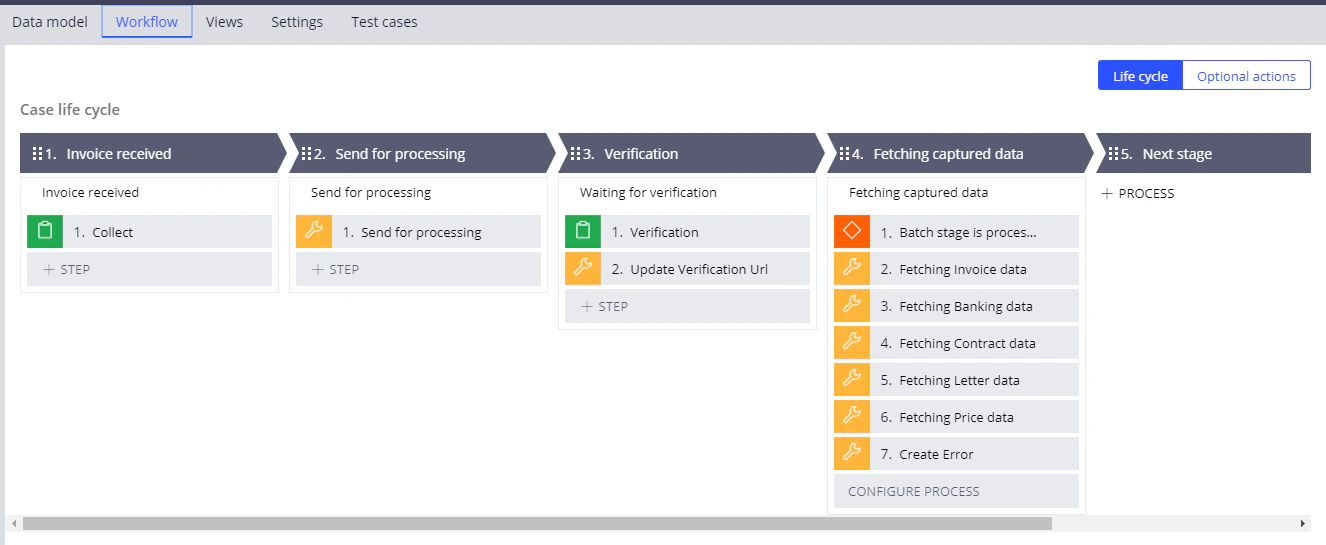
Configure the stage that submits a document for processing
For the general procedure, see Configure the workflow stages and The Utility step.1
Replace the step
Open the Send for processing stage in configuration mode, replace the Edit details step with a Utility step, and name the step
Send for processing.2
Call the activity
Open the Utility step and call the
SendForProcessing activity.Start creating the activity by clicking the configuration button to the right of the Rule field. Alternatively, leave the pyUtilityStub value in the Rule field and come back to this step after you have created the activity set.For more information, see SendForProcessing.3
Set the case identifier
In the CaseId field, specify 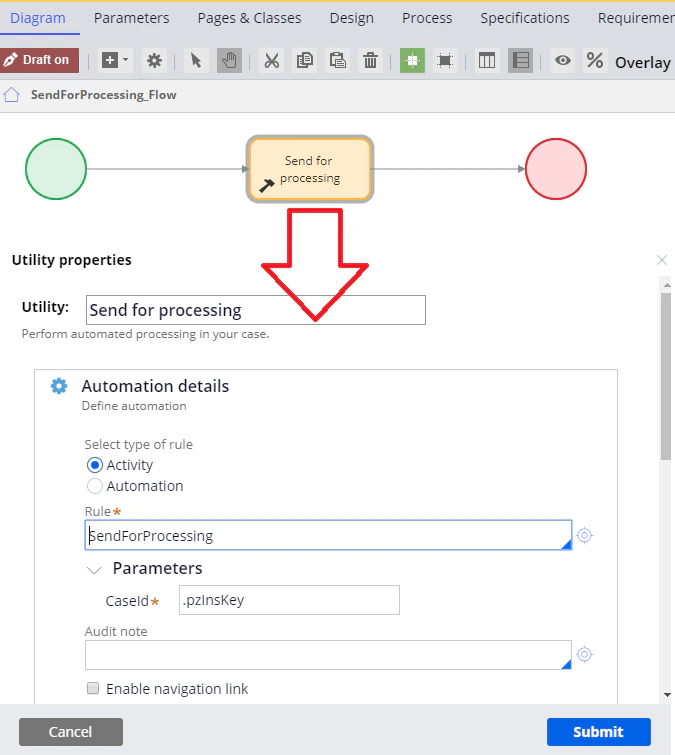
.pzInsKey.Configure the verification stage
For the general procedure, see Configure the workflow stages and The Utility step.1
Add the Utility step
Open the Verification stage in configuration mode, add a Utility step, and name it
Update Verification Url.2
Rename the existing step
Rename the Edit details step to
Verification.3
Call the activity
Open the Update Verification Url step and call the
UpdateVerificationUrl activity.For more information, see UpdateVerificationUrl.4
Connect the steps
Connect the Verification and Update Verification Url steps using a Verification flow action connector.For more information, see Creating a flow action.
5
Set the case identifier
In the CaseId field, specify 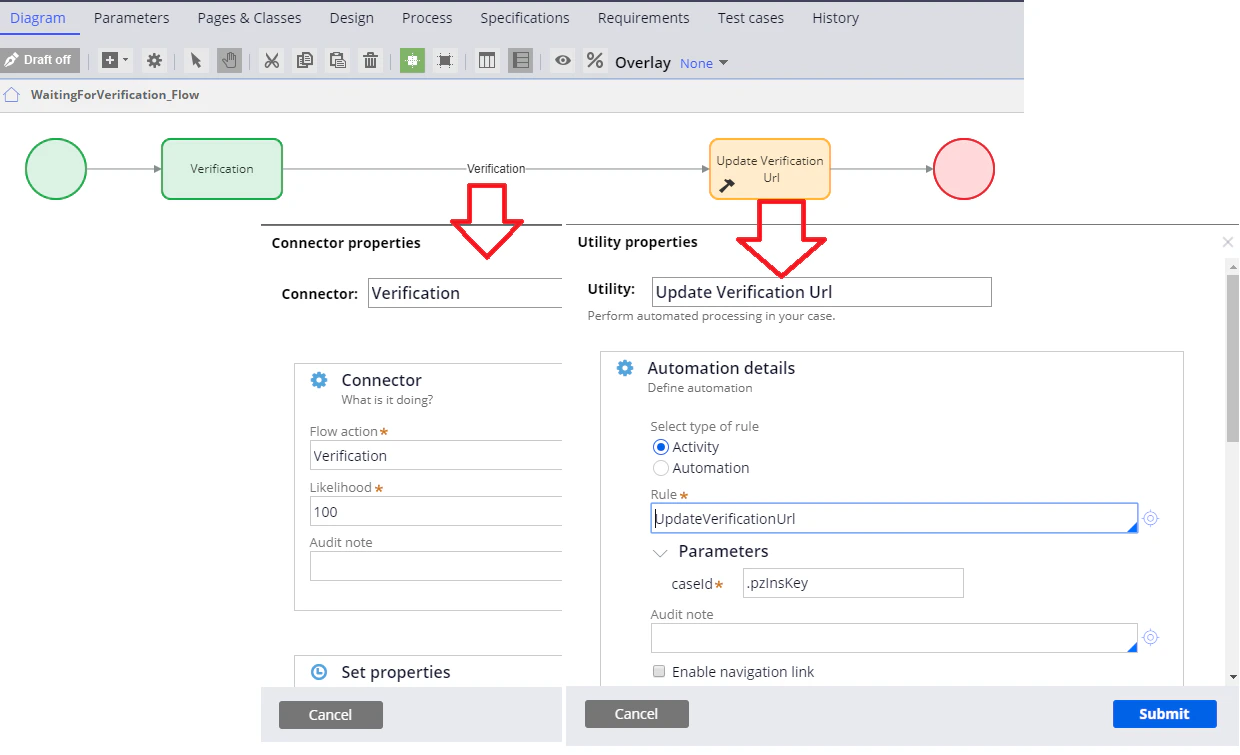
.pzInsKey.Configure the stage that fetches the processing results
For the general procedure, see Configure the workflow stages, The Utility step, and The Decision step.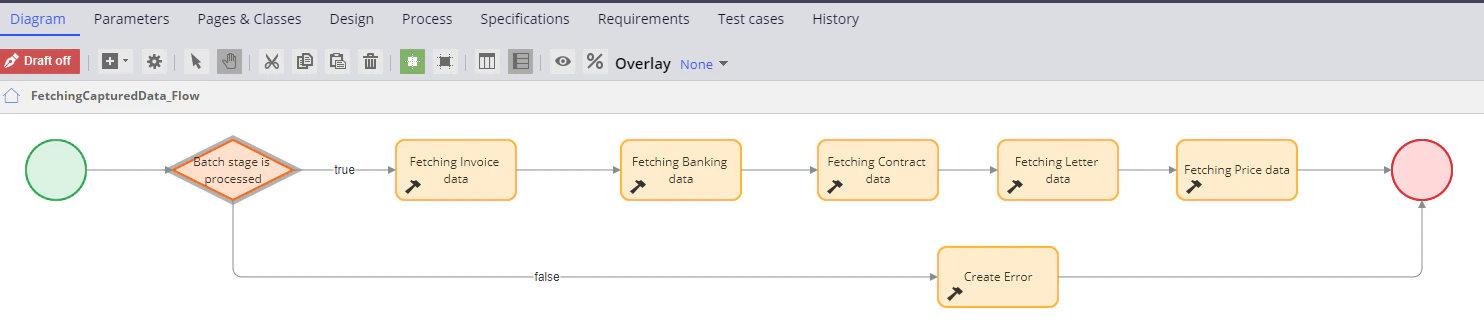
1
Delete the existing step
Open the Fetching captured data stage in configuration mode and delete the Edit details step.
2
Add a Decision step
Add a Decision step and name it
Batch stage is processed.3
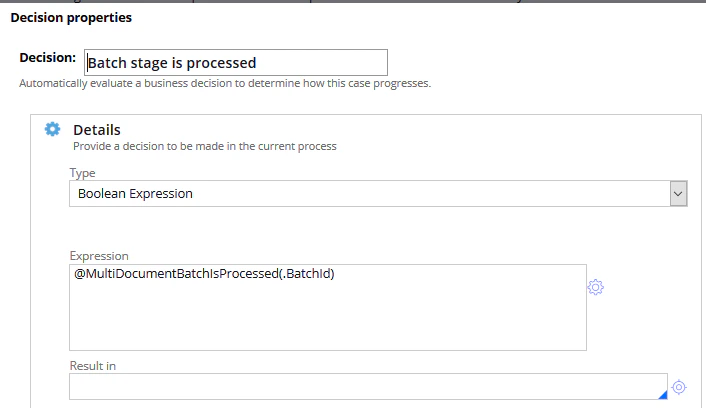
Set the decision expression
- Open the step and select Boolean Expression in the Type field.
- In the Expression field, enter or configure a
@MultiDocumentBatchIsProcessed(.BatchId)condition. - Click Submit.
4
Configure the true branch
For the 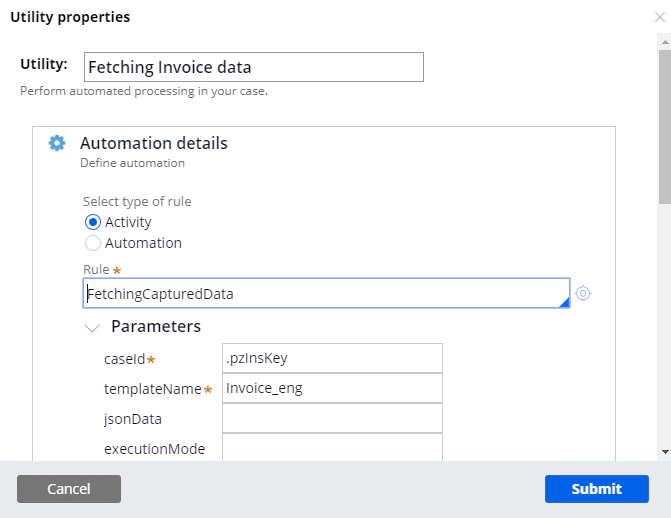
true branch, create one Utility step per Document Definition. For each step, call the FetchingCapturedData activity, enter .pzInsKey in the caseId field, and set templateName to the matching value:For more information, see FetchingCapturedData.
5
Configure the false branch
For the For more information, see CreateError.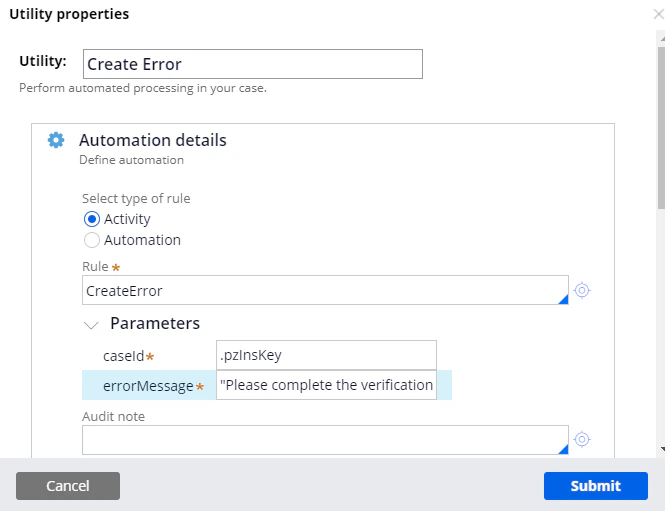
false branch, create a Utility step named Create Error, call the CreateError activity, and enter .pzInsKey in the caseId field.In the errorMessage field, enter this text: